Code Generation & Maintenance
To achieve maximum performance and perfect Unity Inspector integration, the Game Event System relies on concrete C# classes for your specific data types.
While GameEvent<T> is powerful, Unity's Inspector (UnityEvent) cannot serialize generic types directly. This toolset automates the creation of these wrapper classes, ensuring your custom data types (structs, classes, enums) appear natively in the Inspector without you writing a single line of boilerplate code.
These utilities are located within the Hub System Dashboard.
Go to Tools → TinyGiants → Game Event System or see the Hub System Dashboard page for details.
📂 The Architecture
Before using the tools, it is important to understand where your code lives. The system strictly separates Core Logic from User Data to ensure you can upgrade the plugin without losing your generated files.
Assets/
├── 📁 TinyGiants/                  # [CORE LOGIC] The immutable plugin root
│   └── 📁 GameEventSystem/
│
└── 📁 TinyGiantsData/              # [USER DATA] Your generated content sanctuary
    └── 📁 GameEventSystem/
        └── 📁 CodeGen/             # 💾 Auto-Generated C# Classes
            ├── 📁 Basic/           # 🛡️ Primitive Types (Required System Files)
            └── 📁 Custom/          # 💾 Your Custom Types (Managed by Tools)
The TinyGiantsData/GameEventSystem/CodeGen/Basic folder contains essential system types (Int, Float, Bool, String, etc.).
Never manually delete or modify files in this folder.
If you accidentally delete the Basic folder or if the system reports missing basic types (like Int32GameEvent), you can self-repair the environment.
- Open the Hub System Dashboard (
Tools > TinyGiants > Game Event System). - Click the Initialize Event System button at the top of the window.
- The system will:
- Re-create the directory structure.
- Regenerate all missing Basic Type codes.
📝 Understanding Generated Code
When you generate code for a type (e.g., int or a custom DamageInfo struct), the tool creates a file containing two critical parts:
- The Event Class: A concrete wrapper (e.g., Int32GameEvent) inheriting from
GameEvent<T>. - The Binding Field: A partial class extension for
GameEventManagerthat adds aUnityEvent<T>field, allowing the Inspector to bind listeners via reflection.
Example: Basic Type (Int32)
// =============================================================
// BASIC GAME EVENT - AUTO GENERATED
// =============================================================
using UnityEngine;
using UnityEngine.Events;

namespace TinyGiants.GameEventSystem.Runtime
{
    // 1. The ScriptableObject Class
    public class Int32GameEvent : GameEvent<int> { }

    // 2. The Inspector Binding
    public partial class GameEventManager
    {
        public partial class EventBinding
        {
            [HideInInspector]
            public UnityEvent<int> Int32GameEventAction;
        }
    }
}
Example: Custom Sender Type
For events that carry both a Sender and Arguments:
// =============================================================
// CUSTOM SENDER GAME EVENT - AUTO GENERATED
// =============================================================
using UnityEngine;
using UnityEngine.Events;

namespace TinyGiants.GameEventSystem.Runtime
{
    // 1. The ScriptableObject Class
    public class GameObjectDamageInfoGameEvent : GameEvent<UnityEngine.GameObject, DamageInfo> { }

    // 2. The Inspector Binding
    public partial class GameEventManager
    {
        public partial class EventBinding
        {
            [HideInInspector]
            public UnityEvent<UnityEngine.GameObject, DamageInfo> GameObjectDamageInfoGameEventAction;
        }
    }
}
⚡ Code Generator Tool
The Game Event Code Generator features a tabbed interface allowing you to switch between simple single-parameter events and complex sender-argument events. Both modes support batch queuing, meaning you can setup multiple types and generate them all at once.
- Single Parameter
- With Sender
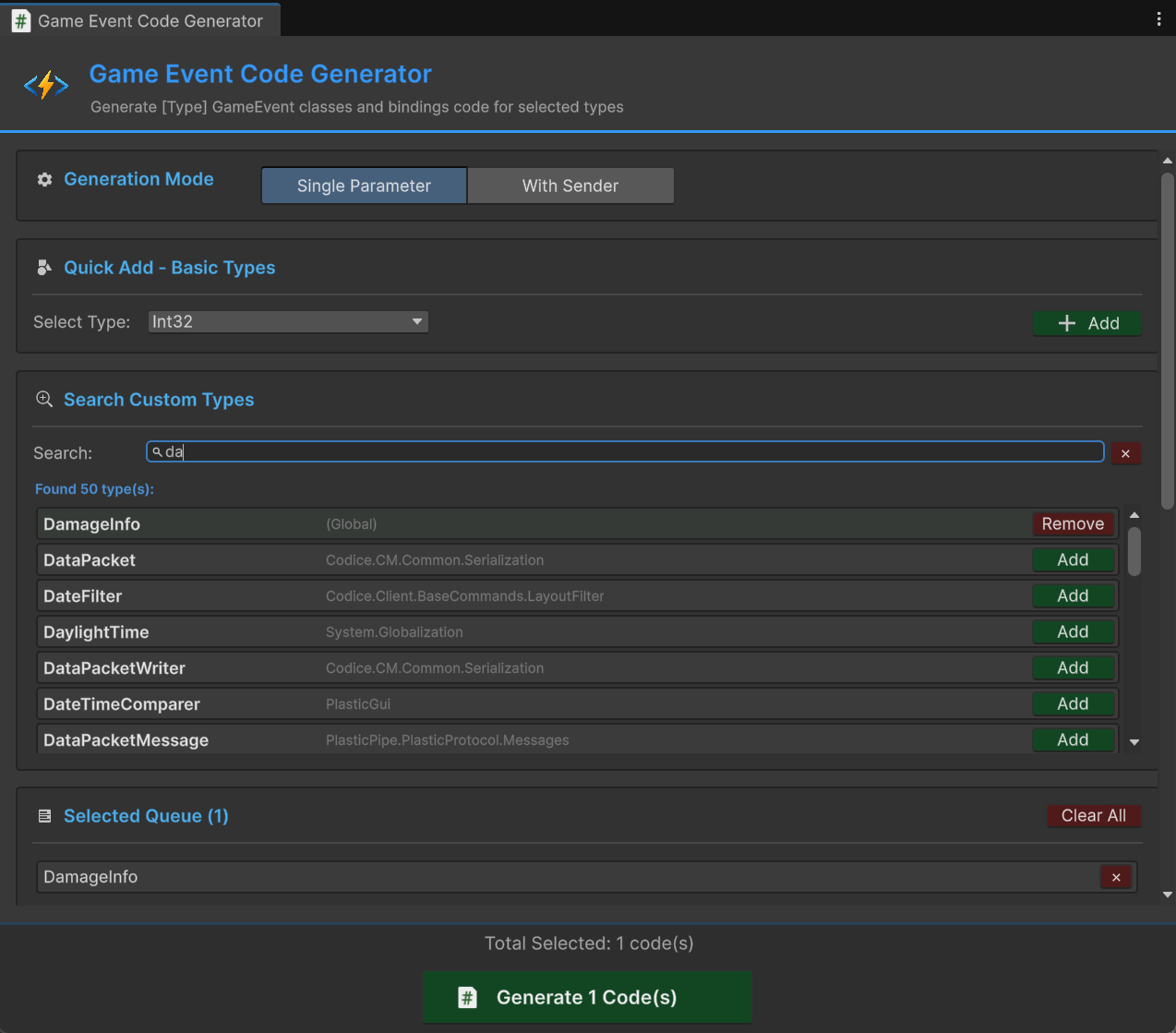
Use this mode for events that carry a single data payload (e.g., GameEvent<float> or GameEvent<MyClass>).
- Quick Add: Use the dropdown to quickly add standard C# types (Double, Long, Vector3, etc.).
- Search Custom Types: Type the name of any class, struct, or enum in your project.
- Queue System: Click Add to move types into the "Selected Queue".
- Batch Generate: Click the green Generate Code(s) button to create files for all queued types simultaneously.
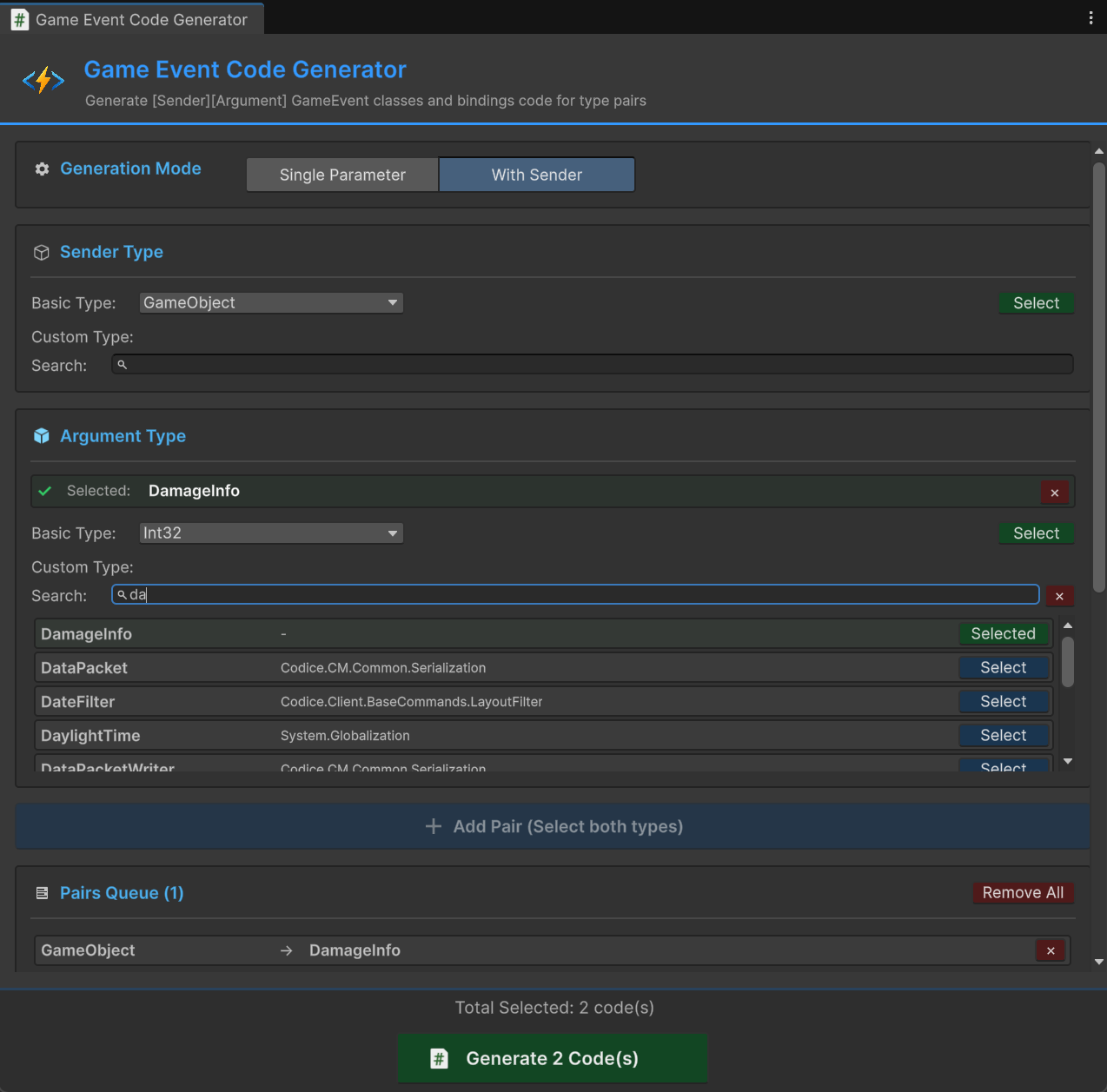
Use this mode for events that need to know who triggered the event and what happened (e.g., Player sent DamageInfo).
- Select Sender Type: Usually
GameObjector a specific script (e.g.,PlayerController). - Select Argument Type: The payload data (e.g.,
DamageInfo). - Add Pair: Creates a specific combination (e.g.,
GameObject→DamageInfo) and adds it to the queue. - Batch Generate: Generates all defined pairs in one operation.
After clicking "Generate", Unity will trigger a script recompilation. The new event types will be available in the Create Asset Menu and the Event Editor immediately after compilation finishes.
🧹 Code Cleaner Tool
As your project evolves, you may delete old structs or refactor code, leaving behind unused GameEvent classes. The Code Cleaner mirrors the Generator's interface, allowing you to filter and batch-delete obsolete files safely.
It only targets the Custom folder (TinyGiantsData/.../Custom). It will never display or delete files from the Basic folder, protecting system integrity.
- Single Parameter
- With Sender
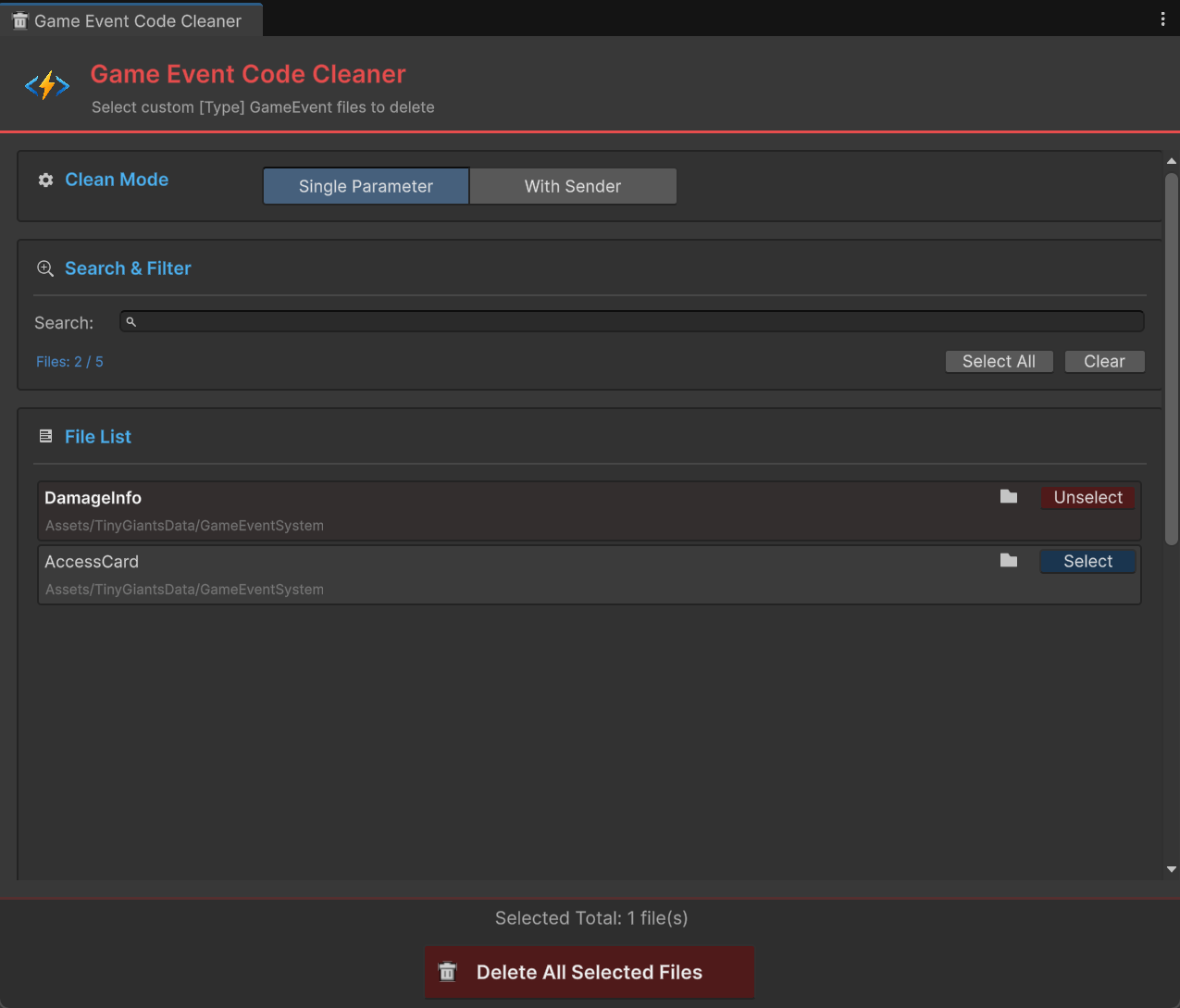
Lists all custom generated files for GameEvent<T>.
- Search & Filter: Find files by type name (e.g., searching "Damage" will find
DamageInfoGameEvent.cs). - Select All / Clear: Quickly manage large lists.
- Multi-Selection: Tick individual files or use "Select All".
- Delete: The red Delete All Selected Files button removes the
.csfiles and their.metafiles for all checked items.
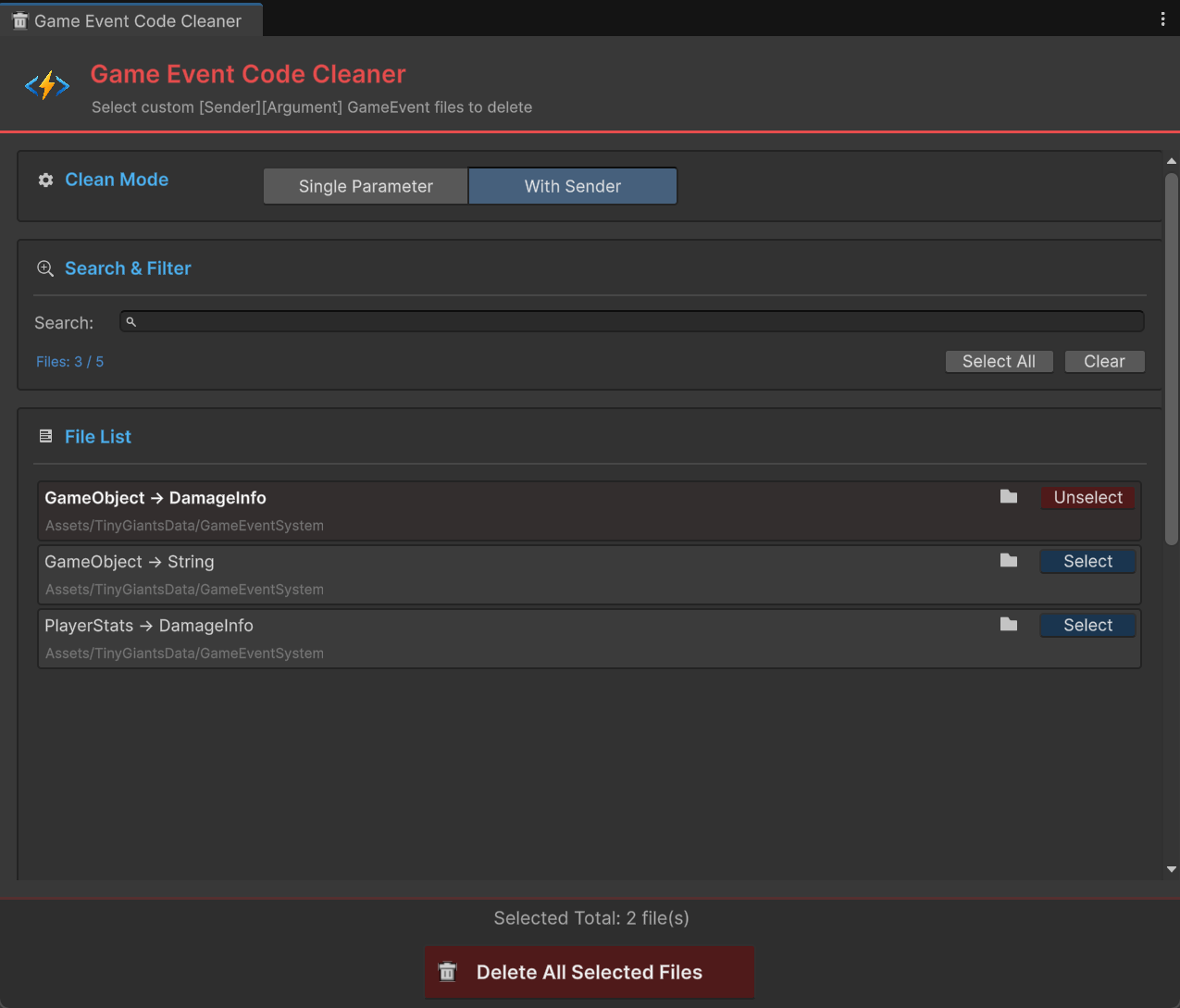
Lists all custom generated files for GameEvent<Sender, Args>.
- Complex Filtering: You can search by Sender name OR Argument name.
- File Inspection: Click the Object Icon 📦 next to any file to ping/highlight the script in the Project Window before deleting (useful to double-check references).
- Batch Delete: Safely removes multiple Sender-Event definitions in one click.
☢️ Clean All (Reset)
Located in the main Game Event System Window under the Utilities section, the Clean All Game Event Code button is the "Nuclear Option".
- Action: Deletes ALL files in
TinyGiantsData/GameEventSystem/CodeGen/Custom. - Preservation: It preserves the Basic folder.
- Use Case: Use this when you want to perform a hard reset of your custom events or if you have refactored a large number of types and want to regenerate only what is currently needed.