Flow Graph Editor
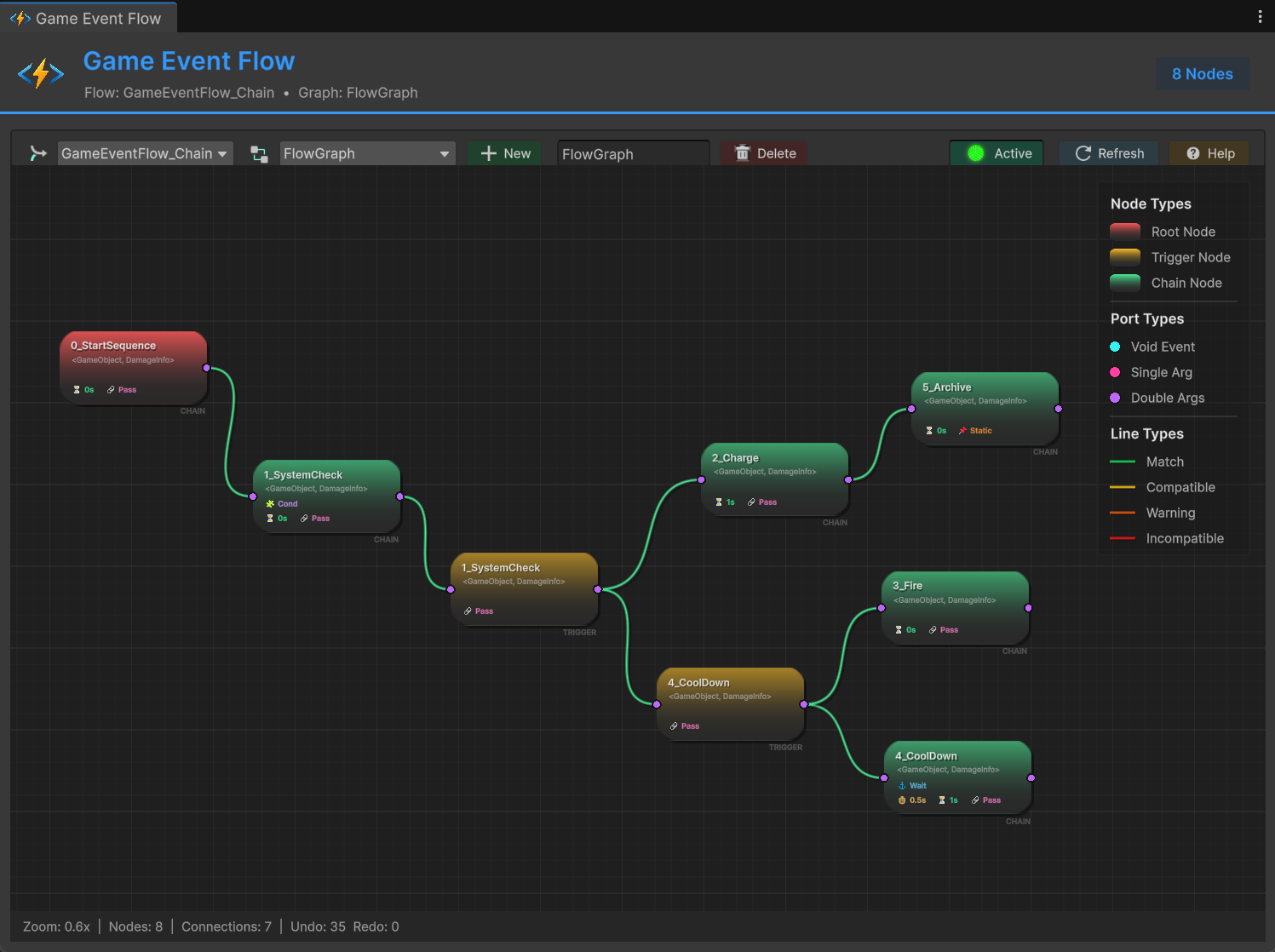
The Visual Flow Editor is the orchestrator of your game's logic. It is designed to solve the "Spaghetti Code" problem by visualizing complex event dependencies in a single, readable graph.
Instead of hunting through 10 different scripts to find out why a door opened, you simply look at the Flow Graph.
🕸️ Design Philosophy: Why a Graph?
Traditional Unity events are "Fire and Forget". This is great for decoupling, but terrible for debugging sequences. The Flow Graph introduces two powerful concepts to bridge this gap:
| Concept | Nature | Behavior | Use Case |
|---|---|---|---|
| Trigger (Fan-Out) | Parallel | Non-blocking. One event fires multiple others simultaneously. | "OnPlayerDeath" -> Play Sound, Spawn Particles, Show UI. |
| Chain (Sequence) | Serial | Blocking. Events fire one after another, waiting for completion or delays. | "StartCutscene" -> (Wait 2s) -> "ShowDialog" -> (Wait Input) -> "EndCutscene". |
By mixing these two nodes, you can build logic that is both decoupled AND structured.
🚀 Accessing the Editor
The Flow Graph Editor is designed as an extension of your event management workflow.
To access it:
- Open the Game Event Editor
- Click the Flow Graph button located in the main toolbar.
(This ensures you are always working within the correct context of your event library.)
🛠️ The Toolbar
Located at the top of the window, the toolbar manages your graph assets.
- Flow Asset Dropdown:
- Allows you to switch between different Flow Graph Assets (e.g., switch from "Global_Flow" to "Level_1_Flow").
- The graph content updates instantly upon switching.
- Help Button (
?):- Opens the built-in Quick Reference Guide. Use this if you forget color codes or shortcuts.
Flow Graphs are stored as .asset sub-assets inside a Flow Container. You should create separate graphs for different game systems to keep logic clean.
🖱️ Navigation & Controls
The editor features a zoomable, pannable infinite canvas designed for large-scale logic.
To view the complete list of operations and configurations, please click on Help and open the GameEventHelpWindow window to view it.
Canvas Interaction
| Action | Control | Description |
|---|---|---|
| Pan View | Middle Mouse Drag | Move around the infinite canvas. |
| Zoom | Scroll Wheel | Zoom in/out (centered on your mouse cursor). |
| Context Menu | Right Click | Open the menu to add new nodes (Root/Trigger/Chain) or Groups. |
Selection & Manipulation
| Action | Control | Description |
|---|---|---|
| Select | Left Click | Select a single node, group, or connection. |
| Multi-Select | Box Drag | Click and drag on empty space to select multiple items. |
| Toggle Select | Ctrl/Shift + Click | Add or remove individual items from the current selection. |
| Move | Left Drag | Move selected nodes. Groups automatically resize to fit members. |
| Edit Node | Double Click | Opens the Node Configuration window for detailed setup. |
Connection Wiring
| Action | Control | Description |
|---|---|---|
| Create Connection | Drag Output Port | Drag from a node's Right (Output) port to another node's Left (Input) port. |
| Re-route | Drag Input Port | Drag an existing connection away from its Input port to connect it somewhere else. |
| Delete Connection | Click + Delete | Select a connection line and press Delete (or Right-Click > Delete). |
Keyboard Shortcuts
Ctrl + A: Select All nodes.Ctrl + Z: Undo (Supports up to 50 steps history).Ctrl + Y/Ctrl + Shift + Z: Redo.Delete: Remove selected nodes or groups (keeps children nodes).Shift + Delete: Cascade Delete. Removes the selected group AND all nodes inside it.Escape: Clear selection or cancel current drag operation.
📁 Grouping System
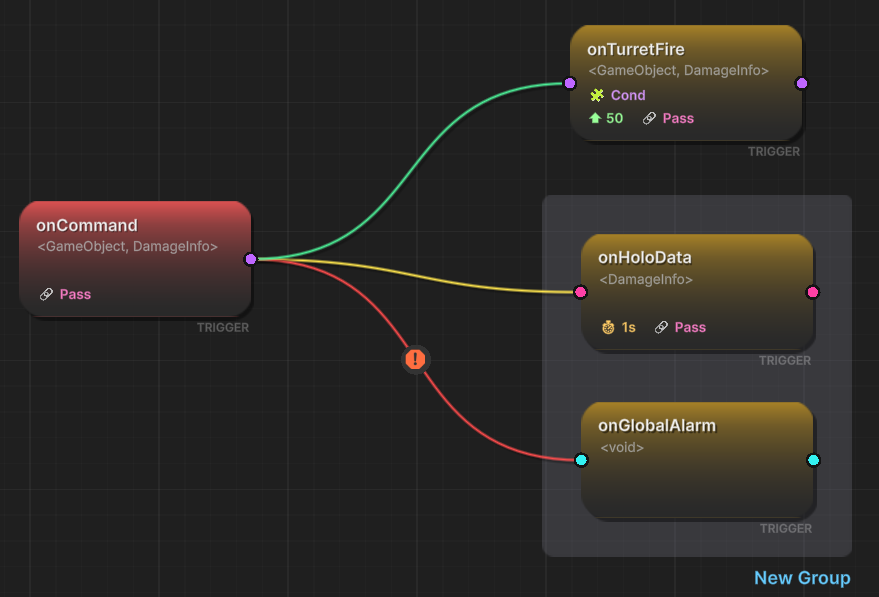
To keep large graphs tidy, use Groups.
- Create: Select multiple nodes -> Right Click -> Create Group from Selection.
- Rename: Double-click the group header title.
- Constraint: A node can only belong to one group at a time.
- Behavior: Dragging a group moves all its members.
Use Shift + Box Select to add nodes to an existing selection, then create a group to quickly organize a messy graph section.