Hub System Dashboard
The Game Event System Window (The Hub) is your central command center. It is designed to provide a high-level overview of the plugin's status, quick access to core tools, and real-time environment telemetry.
Instead of hunting through project folders or menus, The Hub brings every critical operation into a single, organized interface.
🚀 Accessing the Hub
Open the dashboard via the Unity top menu:
Tools > TinyGiants > Game Event System
(Shortcut: Ctrl+Alt+E on Windows / Cmd+Opt+E on Mac)
🗺️ Interface Overview
The dashboard is divided into specific functional zones. Below is a detailed breakdown of each section.
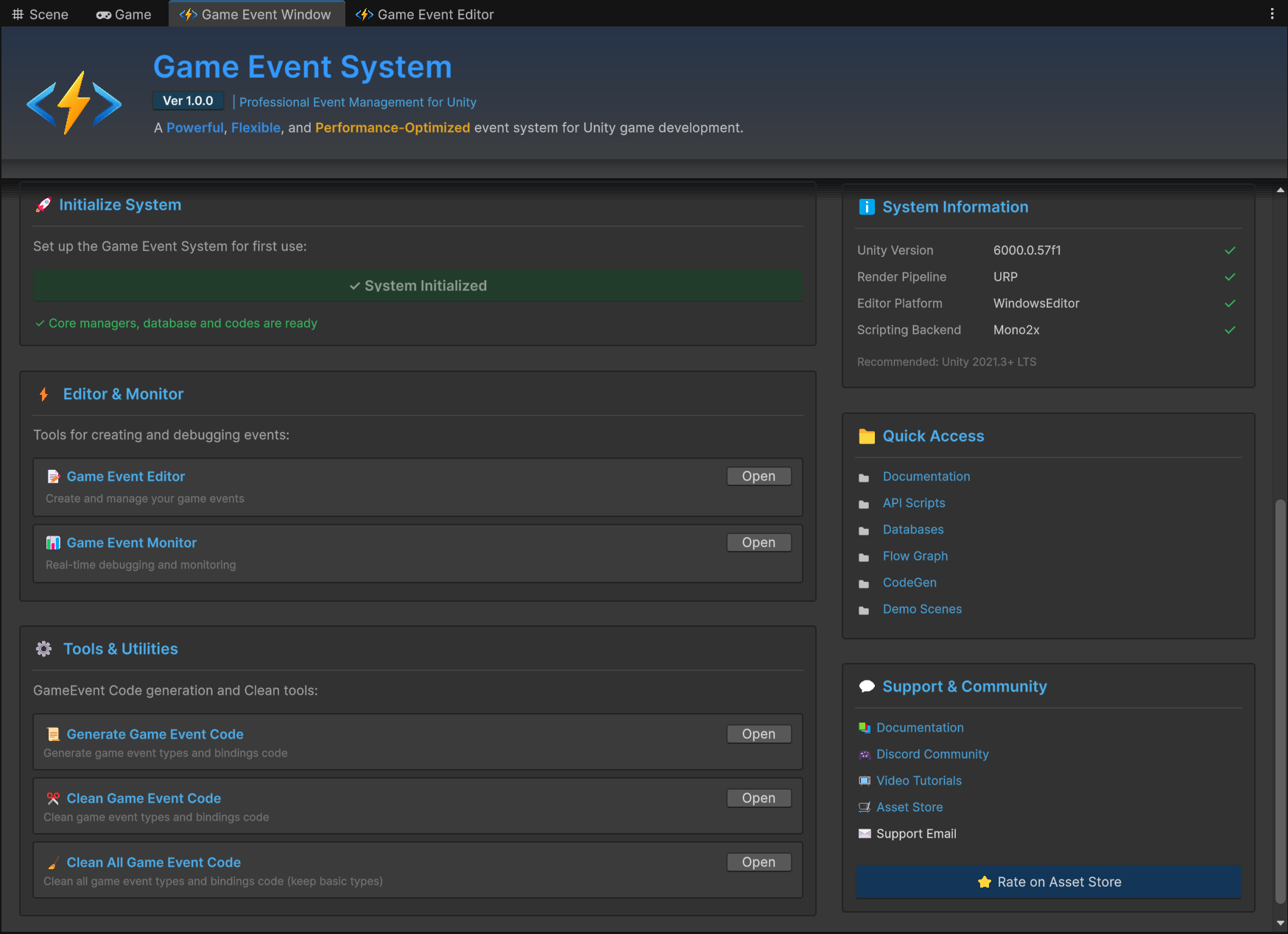
1. 🚀 Initialization & Status
Located on the Middle-Left, this bar acts as the Global Health Indicator for the system.
- Green Check: The system is fully initialized. Core managers and databases are present.
- Blue Action Button: Critical components are missing (e.g., if the Manager object was accidentally deleted from the scene).
If this bar turns Blue during development, simply click it to Auto-Repair the scene dependencies immediately. For the initial setup guide, refer to Installation & Setup.
2. ⚡ Core Workflow Tools
Located in the Editor & Monitor section, these are your daily drivers.
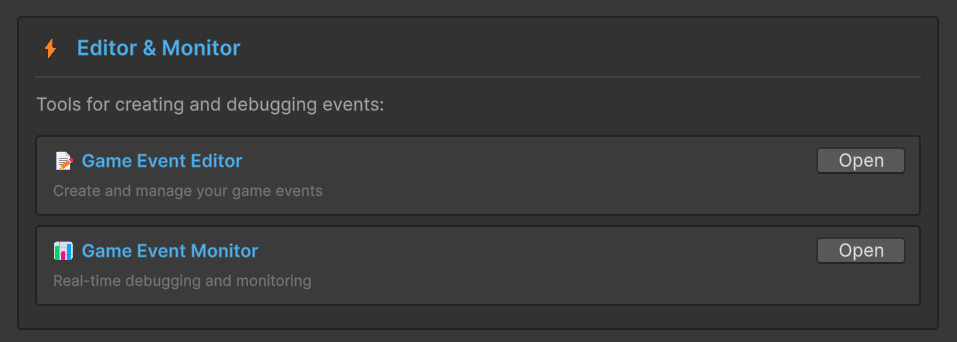
| Tool | Description |
|---|---|
| Game Event Editor | Opens the main management window to create, search, filter, and edit events. This is where you will spend 80% of your time. |
| Game Event Monitor | Opens the runtime debugger. Use this during Play Mode to watch event execution paths, inspect values, and profile performance. |
3. ⚙️ Code Maintenance Tools
Located in the Tools & Utilities section, these utilities manage the underlying C# generation system.
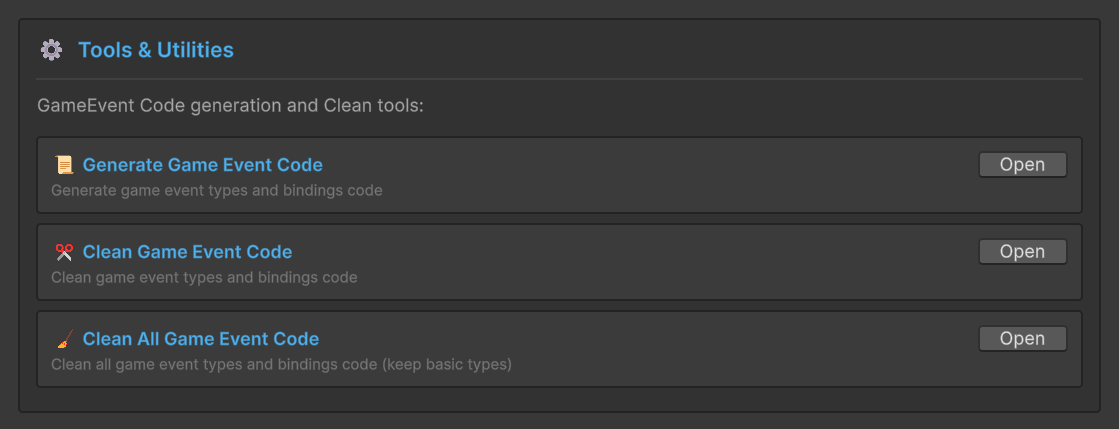
- Generate Game Event Code: Manually triggers the code generator. Use this if you have added a new custom type (e.g.,
GameEvent<MyCustomData>) and need the concrete class generated immediately. - Clean Game Event Code: Scans your project for generated classes that are no longer used by any asset and safely removes them to keep your project clean.
- Clean All Game Event Code: A hard reset. Removes ALL generated code (except basic types). Use this only if you are reinstalling or refactoring significantly.
The system is designed to auto-generate code when you create events via the Wizard. You rarely need to click "Generate" manually unless you are doing custom scripting work.
4. ℹ️ System Telemetry
Located on the Bottom-Right, this panel monitors your project environment in real-time.
It automatically validates your Unity Version, Render Pipeline, and Scripting Backend compatibility.
For a detailed explanation of what these metrics mean and how they affect the plugin, please refer to the Automatic Environment Check section in the Installation guide.
5. 📂 Quick Access
Stop digging through the Project window. The Quick Access panel provides direct shortcuts to critical folders and assets.
- Documentation: Pings the local PDF or opens this online documentation.
- API Scripts: Selects the API folder in the Project View.
- Databases: Selects the folder containing your .asset database files.
- Flow Graph: Selects the folder containing your Visual Graph assets.
- CodeGen: Jumps to the generated code folder.
- Demo Scenes: Quickly locate the examples folder.
6. 💬 Support & Community
We believe in strong support. Use this panel to connect with us.
- Discord Community: Join our active server for real-time help and showcase.
- Video Tutorials: Watch step-by-step guides on YouTube.
- Rate on Asset Store: If you enjoy the plugin, a 5-star review helps us immensely! 🌟
📝 Release Notes
The top-right panel displays the highlights of the current version (Ver 1.0.0).
It categorizes new features into:
- Listening & Binding: Updates to the Inspector workflow.
- Flow Control: New graph nodes and logic capabilities.
- Core Architecture: Performance improvements and backend changes.
Click View Full Details to open the comprehensive changelog file.