Scene Reference Integration
The Reference Finder is a powerful diagnostic tool that scans your entire active scene to locate every GameObject, Script, and Component that is referencing a specific Game Event.
It answers the critical question: "If I change this event, who will be affected?"
🚀 Accessing the Tool
You can open the Reference Finder from the Game Event Editor.
Click the Magnifying Glass (🔍) icon on the event row.
🖼️ Interface Modes
The window supports two visualization modes to suit different inspection needs. You can toggle between them using the toolbar buttons.
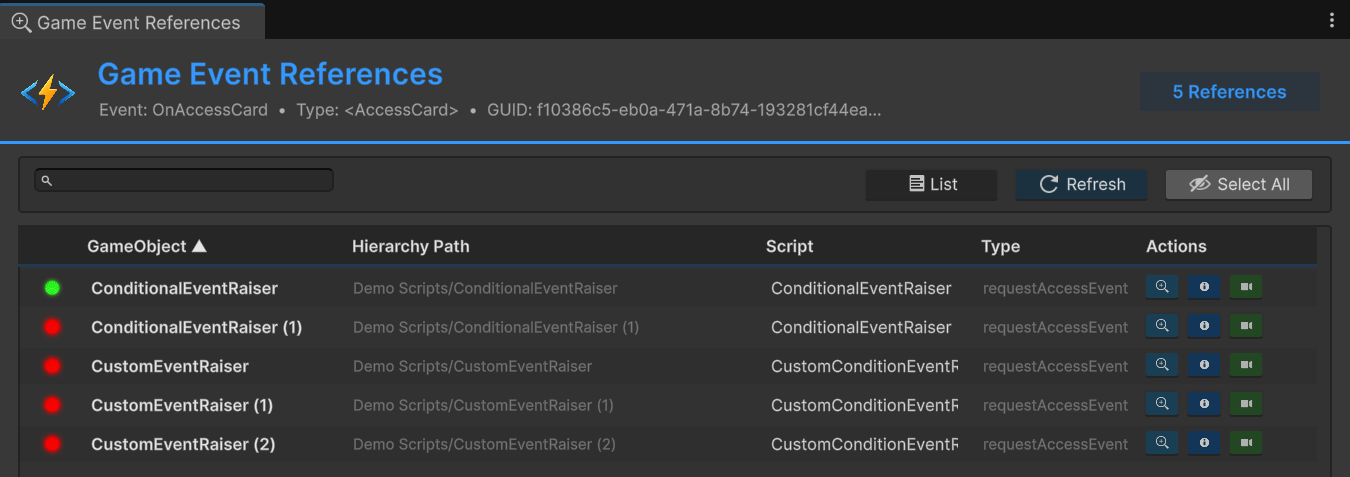
1. List Mode (Flat View)
Displays a straightforward, sortable list of all references.
- Best for: Quickly scanning total usage or sorting by path/name.
2. Grouped Mode (Script View)
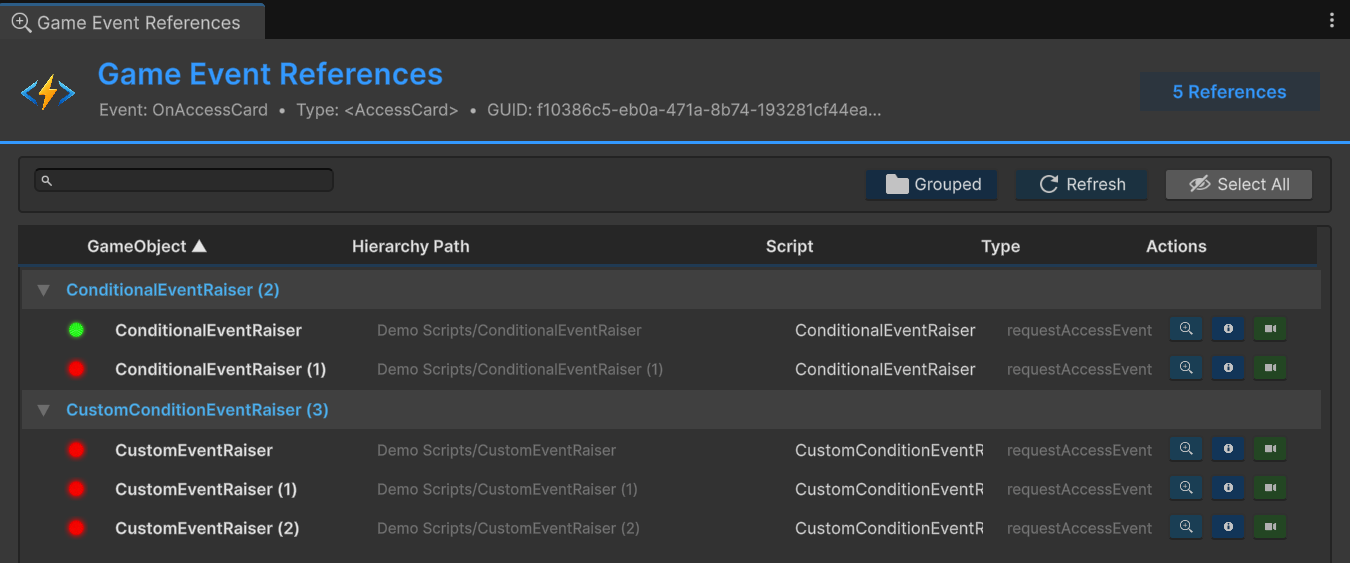
Groups references by the Script Component that is holding them.
- Best for: Understanding which systems rely on this event (e.g., seeing that 5
EnemyAIscripts and 1GameManagerare using it).
📊 Status Indicators
Each row provides real-time feedback about the state of the referencing object:
| Icon | Status | Description |
|---|---|---|
| 🟢 | Active | The GameObject is currently active in the hierarchy. The event binding is live. |
| 🔴 | Inactive | The GameObject is disabled. The event binding will not trigger until enabled. |
📝 Reference Details
The columns provide detailed context for every reference:
- GameObject: The name of the object in the scene.
- Hierarchy Path: The full breadcrumb path (e.g.,
Environment/Enemies/Grunt_01). - Script: The name of the C# class referencing the event (e.g.,
PlayerHealth). - Type: The variable name in the code (e.g.,
onDeathEvent).
The tool uses Reflection to scan all public and private fields on your MonoBehaviours. It finds references even if they are buried in private serialized fields!
⚡ Quick Actions
The Actions column on the right provides three powerful navigation tools to jump instantly to the target object.
| Button | Icon | Action | Use Case |
|---|---|---|---|
| Ping | 🔍 | Ping in Hierarchy | Flashes the object in the Hierarchy window to show its location without changing selection. |
| Focus | 📋 | Focus in Inspector | Selects the object and instantly brings the Inspector into focus, allowing you to edit the script immediately. |
| Frame | 🎥 | Frame in Scene | Selects the object and moves the Scene View camera to frame it perfectly. |
🎮 The Dropdown Selector
Note: This feature is part of the Scene Integration workflow but is used directly in the Inspector.
To avoid dragging and dropping assets manually, the system includes a smart [GameEventDropdown] attribute.
How to use
In your C# scripts, add the attribute above any GameEvent field:
public class DoorController : MonoBehaviour
{
    [GameEventDropdown] // Adds the smart picker
    public GameEvent onDoorOpen;
}
The Result
Instead of a raw object field, the Inspector now shows a Searchable Dropdown.
- Filter: Type to fuzzy search by name.
- Categorize: Events are grouped by their folder/category.
- Safety: Only allows selecting events that match the correct type (e.g., prevents assigning an IntEvent to a Void field).