Managing Events Editor
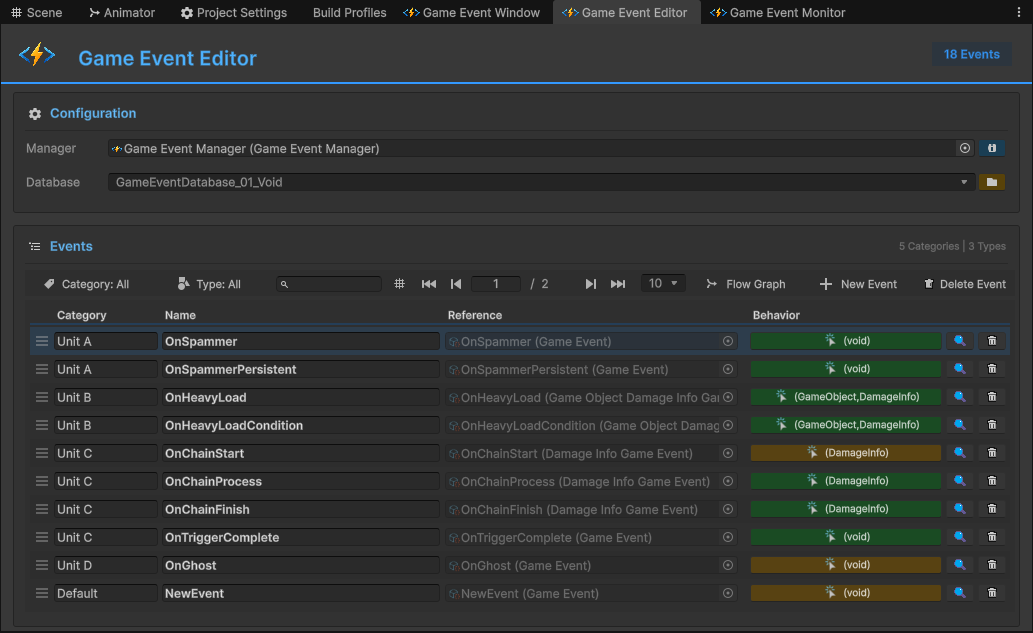
The Game Event Editor is your primary workspace for organizing, refining, and maintaining your event library.
While the Creation Wizard is for birthing new events, the Editor is where you manage their lifecycle: renaming, categorizing, deleting, and navigating to advanced configurations.
🚀 Accessing the Editor
You can open this window via:
- The Hub Dashboard: Click "Game Event Editor" in the Core Tools section.
- Open the Game Event Editor (
Tools > TinyGiants > Game Event System > Game Event Editor).
🎛️ Configuration & Database Switching
Located at the top of the window, the Configuration Bar determines the scope of your work.
- Manager: Selects the active
GameEventManagerin the scene (usually auto-detected). - Database: A dropdown to switch between active databases.
- This allows you to focus on specific modules (e.g., switch from
Core_DBtoCombat_DB). - Only events inside the selected database are displayed in the list below.
- This allows you to focus on specific modules (e.g., switch from
🛠️ Toolbar & Display Options
The toolbar provides powerful tools to filter and organize your view, especially useful when managing hundreds of events.
1. View Modes (Pagination)
To accommodate different workflows, the editor supports two display modes:
- Page Mode (
|< < 1 / 5 > >|):- Displays events in pages (default 10 or 20 per page).
- Best for: Performance and focus when working with large databases.
- Full Mode (
Grid Icon):- Displays all events in a single scrollable list.
- Best for: Getting a bird's-eye view or performing bulk operations.
2. Smart Filtering
Find exactly what you need with three filter layers:
- Category Filter: Show only events belonging to a specific string category (e.g., "UI", "Combat").
- Type Filter: Show only specific event types (e.g., only
Voidevents or onlyInt32events). - Search Bar: Real-time fuzzy search by event name.
📝 The Event List
Each row represents an event asset. The editor exposes direct control over its properties.
Editable Fields
- Category: A text field to group events. Useful for filtering.
- Name: A text field to rename the event.
Because the system uses a GUID Identity System, you can rename events here freely. It will NOT break references in your scene, scripts, or inspectors. The asset file will be renamed automatically to match.
Integration Buttons
Each row contains four critical interaction points:
| Element | Icon / Visual | Function |
|---|---|---|
| Reference | Asset Object Field | Read-Only. Displays the linked asset file and its full type signature. Useful for identifying exactly which asset is being managed. |
| Behavior | Pill Button | Opens the Behavior Configuration window for this event. (Color indicates type: Green=Void/Basic, Orange=Custom) |
| Ref Finder | 🔍 Magnifying Glass | Opens the Reference Finder to see where this event is used in the scene. |
| Delete | 🗑️ Trash Can | Deletes the event asset and its sub-assets. |
⚡ Global Actions & Navigation
The top-right toolbar serves as a launchpad for advanced workflows.
1. 🕸️ Flow Graph (The Orchestrator)
Opens the Flow Graph Editor window.
- Use this to build complex event chains, triggers, and logic sequences.
2. ➕ New Event (The Creator)
Opens the Game Event Creator window.
- Use this when you need to create events in bulk.
3. 🗑️ Delete Event (Batch Mode)
Clicking this button toggles the interface into Batch Selection Mode.
In this mode, checkless boxes appear next to every event, and the top toolbar transforms to provide batch operations:
| Action | Description |
|---|---|
| Select All | Instantly selects all events currently visible in the list. |
| Delete | Permanently deletes the checked event assets and their sub-assets. |
| Cancel | Exits batch mode and returns to the standard view without making changes. |
Deleting events here will remove the .asset files from your project. This operation cannot be undone via Ctrl+Z.
📚 Workflow Summary
The Editor connects all parts of the system:
- Created an event but named it wrong? -> Rename it here.
- Need to make an event Wait 2 seconds? -> Click the Behavior pill.
- Need to trigger 3 other events when this one fires? -> Click Flow Graph.
- Cleaning up and need to know who uses this? -> Click the Magnifying Glass.