Creating Events Wizard
The Game Event Creator (Wizard) is a specialized window designed for the rapid, batch-creation of event assets. It handles the heavy lifting of generating C# classes, compiling them, and creating the ScriptableObject assets in one go.
🚀 Accessing the Wizard
You can only open the Creator window from the Game Event Editor.
Click the green + New Event button in the top corner.
🏗️ The Creator Interface
The window is designed for speed. It allows you to queue up multiple events of different types and build them all at once.
Key Zones
- A. Event Mode Tabs: Switch between the three event archetypes (Void, Single, Sender).
- B. Configuration Area: Select types and configure the event before adding it.
- C. The Queue: A list of pending events waiting to be created. You can rename them or assign categories here.
- D. Status Bar: Top-right shows the total number of queued events (e.g., "7 Queued Total").
🎭 The Three Event Modes
Choose the mode that fits your architectural need.
- 1. Parameterless
- 2. Single Parameter
- 3. With Sender
Type: GameEvent (Void)
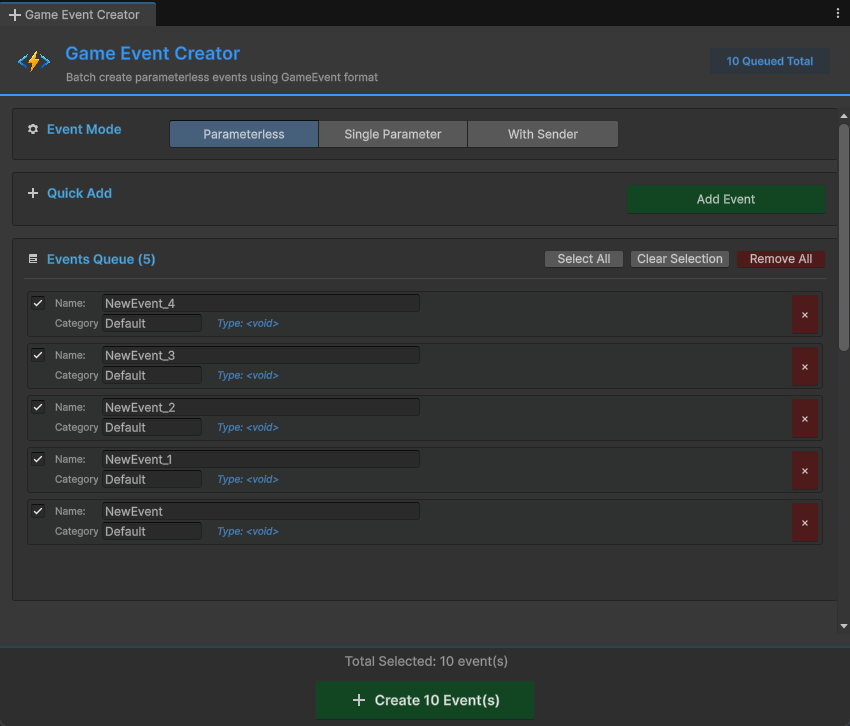
This is the simplest and most common event type. It carries no data, only a signal.
Best For:
- UI Triggers:
OnPauseButtonClick,OnMenuOpen. - Global States:
OnGameStart,OnLevelComplete. - Simple Actions:
OnJump,OnFire.
How to Add:
Simply click Add Event. Since there are no types to configure, it immediately adds a generic event to the queue. You can rename it in the queue list.
Type: GameEvent<T>
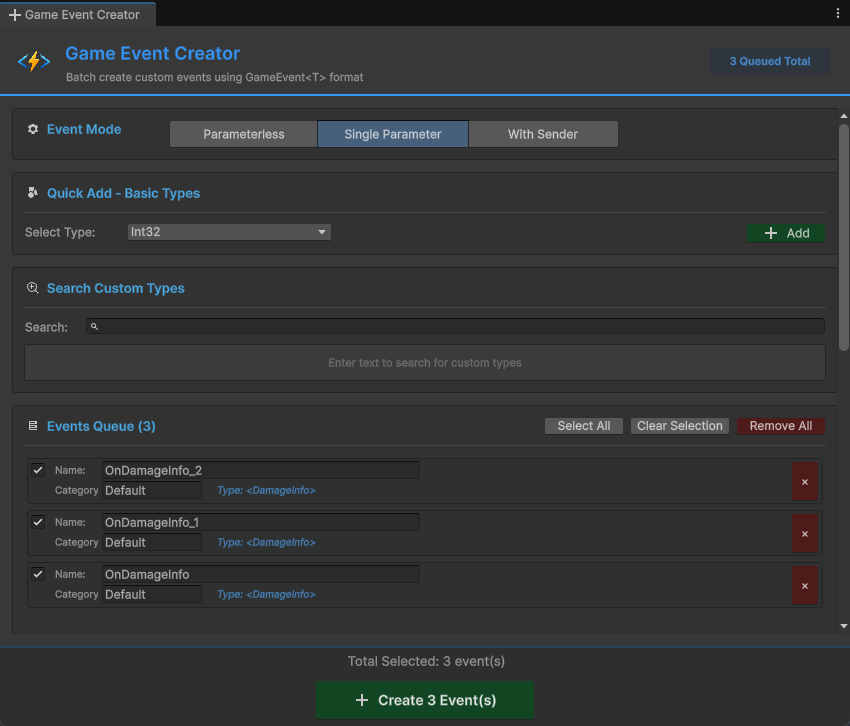
Carries a single payload of data. Supports all built-in Unity types and your custom serializable classes.
Best For:
- Value Changes:
OnHealthChanged(float),OnScoreUpdated(int). - State Updates:
OnGameStateChanged(GameStateEnum). - Object Spawning:
OnEnemySpawned(GameObject).
How to Add:
- Basic Types: Select from the dropdown (e.g.,
Int32,Vector3,GameObject). - Custom Types: Use the Search bar to find any class in your project marked with
[System.Serializable]. - Click + Add to push it to the queue.
Type: GameEvent<TSender, TArgs>
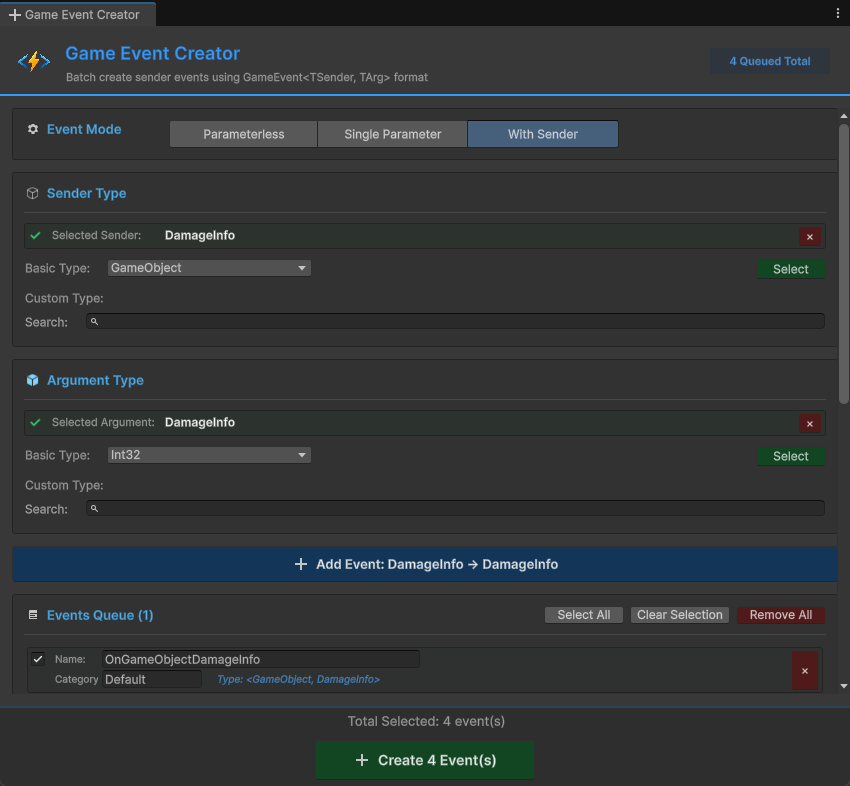
Carries both the Source (Who fired it?) and the Context (What happened?).
Best For:
- Complex Interactions:
OnDamageTaken(GameObject victim, DamageInfo info). - Inventory:
OnItemUsed(PlayerController player, ItemID item).
Best Practice:
While this technically accepts any two types, we strongly recommend semantic consistency:
- TSender: The "Actor" (e.g.,
GameObject,PlayerController). - TArgs: The "Payload" (e.g.,
float,struct).
How to Add:
- Select the Sender Type (Who).
- Select the Argument Type (What).
- Click + Add Event to push the pair to the queue.
📦 Batch Creation Workflow
The power of this window lies in its Batch Queue. You don't need to create events one by one.
- Queue 'em up: Switch between tabs and add as many events as you need. For example:
- Add 2
<Void>events. - Switch to
Single, add 3<Damage>events. - Switch to
Sender, add 1<GameObject,Damage>event.
- Add 2
- Review: Look at the Events Queue section at the bottom.
- Rename: Give them meaningful names (e.g., change
NewEventtoOnGameWin). - Categorize: Set a category (e.g., "Combat", "UI") for easier filtering later.
- Rename: Give them meaningful names (e.g., change
- Execute: Click the big green + Create 7 Event(s) button at the bottom.
⚙️ The Automation Pipeline (Critical)
When you click "Create", the system performs a complex sequence of operations. It is important to understand this flow.
1. Code Generation Analysis
The system checks if the generic class (e.g., IntGameEvent) already exists in your project.
- If YES: It skips to Asset Creation immediately.
- If NO: It triggers the Code Generator to write the new C# class file to TinyGiantsData/CodeGen/.
2. Compilation Wait
If new code was generated, Unity MUST recompile before that code can be used.
- You will see a progress bar.
- The Editor might freeze briefly or show the Unity compilation spinner.
3. Asset Creation & Registration
Once compiled, the system:
- Creates the .asset file (ScriptableObject) in the database folder.
- Assigns a unique GUID.
- Registers it to the active Database.
If the system is generating code and triggering a recompile, please wait. Do not force quit Unity or modify scripts until the process is complete and the new event appears in the list.
If you know you will need Int, Float, and Vector3 events, you can pre-generate these types using the Code Generation Tools. This makes the creation process instant, as the Wizard can skip the compilation step.