Event Behavior Configuration
The Behavior Window is where you define what happens when an event is raised.
Unlike traditional events that just fire blindly, the Game Event System allows you to attach Conditions, Delays, Loops, and Visual Actions directly to the event asset itself.
🚀 Accessing the Window
You can open the configuration for any specific event from the Game Event Editor.
Click the Behavior Button (the pill-shaped button) on the event row.
The Behavior Status Indicator
The button's appearance communicates the event's current state at a glance:
| Color | Meaning |
|---|---|
| Green 🟢 | Configured. The event has Actions assigned in the Inspector. |
| Yellow 🟡 | Empty. The event has no Inspector actions (it might still be used by code listeners). |
| Blue 🔵 | Runtime Active. (Play Mode only) Indicates that code-based listeners have been added dynamically via AddListener(). |
(The button text also displays the full type signature, e.g., <void>, <DamageInfo>, or <GameObject, DamageInfo>)
1. Event Information
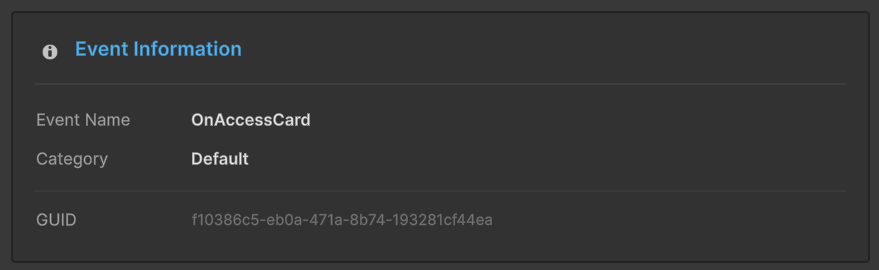
This section provides a read-only summary of the event's identity.
- Name & Category: Helps you confirm you are editing the correct asset.
- GUID: The unique internal identifier used by the system to track this event safely across renames.
2. 🧠 Visual Action Conditions (The Logic Engine)
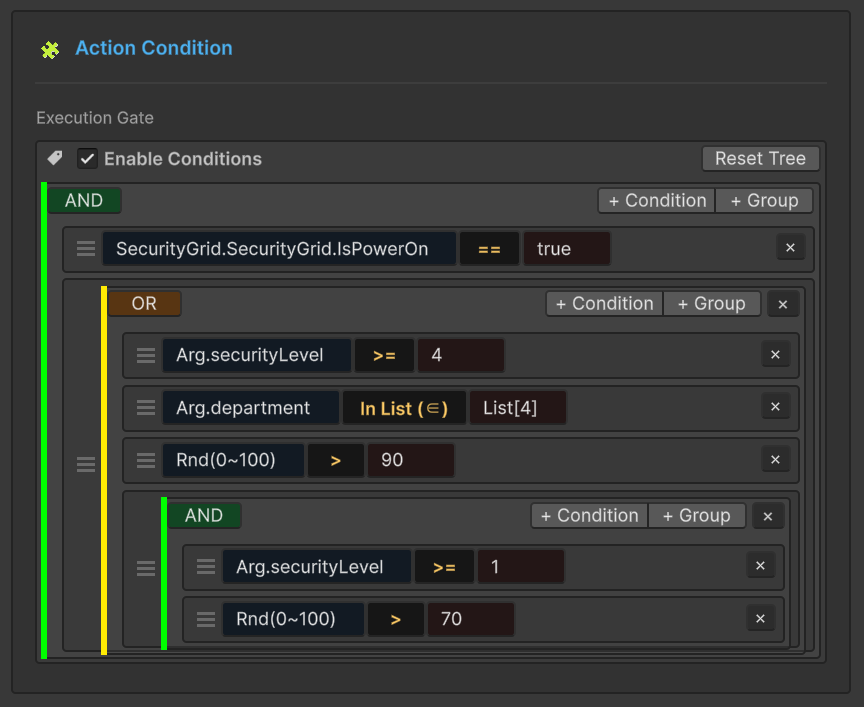
This is the most powerful feature of the Behavior system. It allows you to construct complex, nested boolean logic trees visually. The event's actions will only execute if this tree evaluates to TRUE.
Despite being visual, these conditions are compiled into Expression Trees (Lambdas) at initialization. There is Zero Reflection overhead during gameplay.
The Logic Tree Structure
The tree is built using Groups and Conditions:
- Groups: Logical containers that combine their children using
AND/ORlogic. - Conditions: Individual comparison expressions (e.g.,
Health < 50).
You can nest groups infinitely to create logic like:
(Player.IsAlive == true) AND ((Health < 20) OR (HasShield == false))
Building a Condition
Each condition consists of three parts: Left Operand (Source), Operator, and Right Operand (Target).
A. Source & Target Value Types
You can compare data from four dynamic sources:
| Source Type | Description |
|---|---|
| Event Argument | Reads a field from the event's payload (e.g., Arg.damageAmount). |
| Scene Type | Reads a public property or method from any GameObject in the scene (e.g., PlayerController.IsGrounded()). |
| Random Type | Generates a random number (Range or List Pick). Perfect for chance-based events (e.g., Rnd(0~100) > 90 for critical hits). |
| Constant | (Target Only) A fixed value (e.g., 50, "Game Over", true). |
B. Comparison Logic
The system supports 10 distinct operators tailored to the data types:
- Math:
==,!=,>,<,>=,<= - String:
Starts With,Ends With,Contains (⊃) - Collection:
In List (∈)(Checks if the value exists in a defined list)
3. 🎬 Event Actions (The Response)
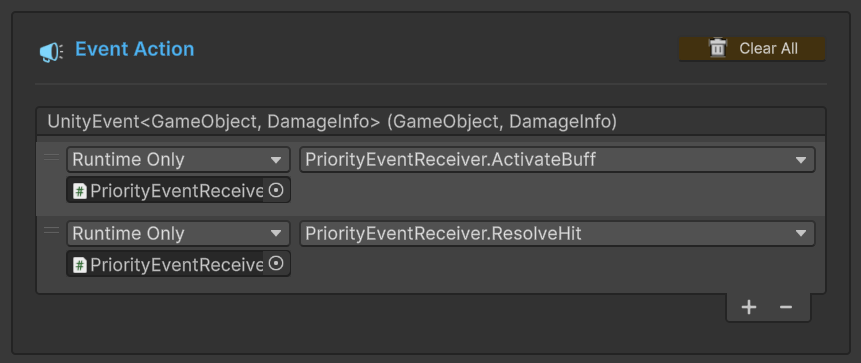
This section defines the actual Unity Actions that fire. It uses the native UnityEvent interface, offering a familiar workflow.
- Add (+): Add a new listener.
- Reorder: Drag the handle on the left to change execution order.
- Dynamic vs Static:
- Dynamic: Passes the event's argument to the function (e.g.,
TakeDamage(float damage)). Choose this from the "Dynamic" section of the dropdown. - Static: Ignores the argument and calls a parameterless function (e.g.,
PlaySound()).
- Dynamic: Passes the event's argument to the function (e.g.,
4. ⏱️ Schedule Configuration (Timing)
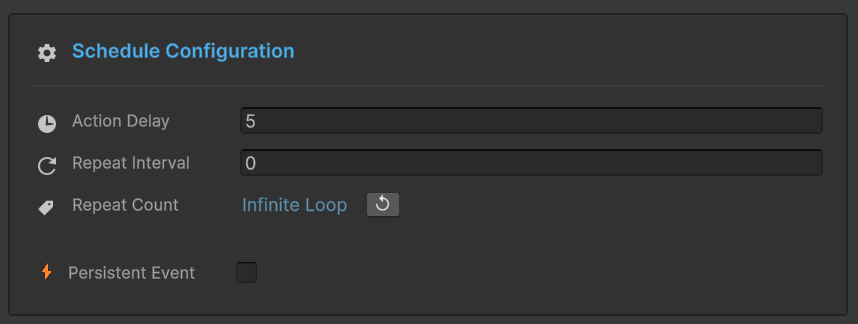
Control when and how often the actions execute.
| Setting | Description |
|---|---|
| Action Delay | Seconds to wait before firing the actions. Non-blocking (uses Coroutines internally). |
| Repeat Interval | If > 0, the event will loop automatically. Time in seconds between loops. |
| Repeat Count | How many times to loop? • Set to -1 (or click Infinite Loop button) for endless repeating.• Set to 1+ for a fixed number of repeats. |
| Persistent Event | If checked, this event's listeners will survive scene loads via DontDestroyOnLoad. Essential for global systems like Music or Save Data. |
Example: A "Poison" Effect
To create a poison effect that deals damage every 1 second for 5 times:
- Action: Bind to
Player.TakeDamage. - Action Delay:
0 - Repeat Interval:
1.0 - Repeat Count:
5