Managing Event Databases
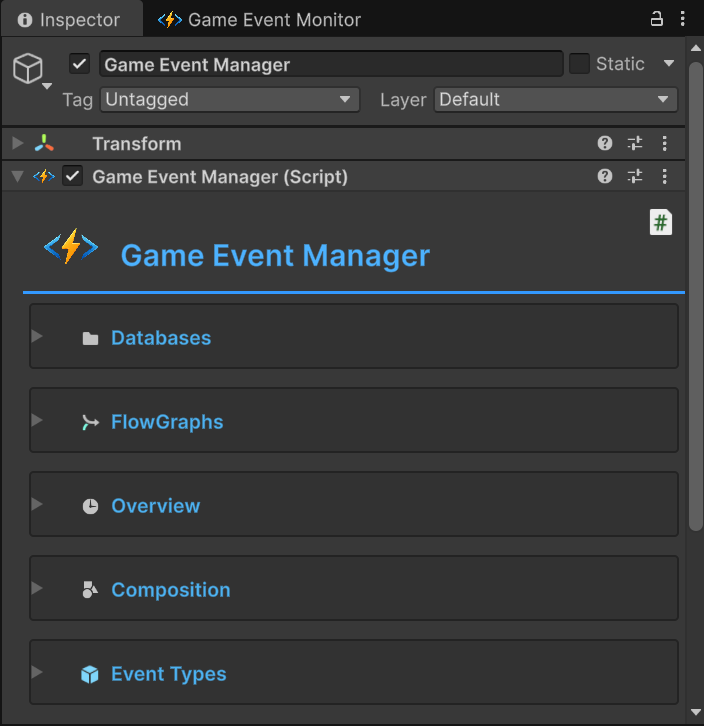
The Game Event Manager is the runtime brain of the entire system. It is responsible for loading your data (Events & Flows) into memory, managing their lifecycle, and providing real-time telemetry.
Unlike the Dashboard (which is a tool for creating), the Manager is the container that holds your data.
🏗️ The Data Architecture
Before diving into the UI, it is critical to understand how this system stores data.
- Container-Based Storage: Events are not loose files. They are stored as Sub-Assets inside a parent Database Asset (
.asset). - Separation of Concerns:
- Databases: Store Event Definitions (Identity, Name, Type).
- Flow Graphs: Store Logic Nodes (Triggers, Chains, Delays).
- The "Sanctuary": By default, all assets are created in
Assets/TinyGiantsData/GameEventSystem/.
Because events are sub-assets, NEVER delete them directly from the Project view by expanding the Database asset.
- To Delete an Event: Use the Game Event Editor.
- To Delete a Flow: Use the Flow Graph Editor.
🗃️ Database Management
This section controls which sets of events are active in your scene. The system supports Multi-Database Architecture, allowing you to split events (e.g., "Core", "Combat", "UI") and load them as needed.
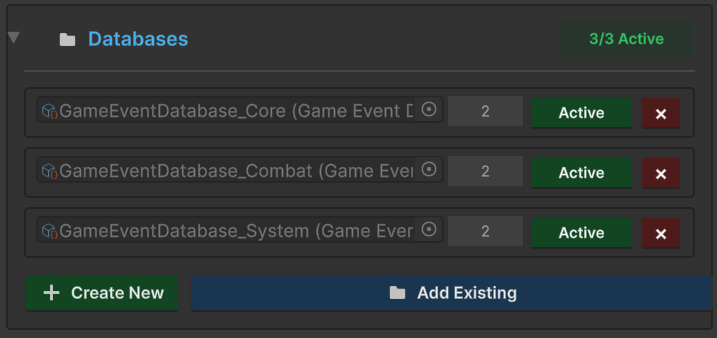
Management Actions
| Action | Description |
|---|---|
| Active / Inactive | Toggles whether this database is loaded. Inactive databases will not resolve event lookups at runtime. |
| Remove (X) | Removes the database from this list only. It DOES NOT delete the asset file from your project. |
| + Create New | Creates a new .asset database file in the TinyGiantsData folder and adds it here. |
| 📂 Add Existing | Opens a file picker to add a database you created previously (or via the Project Context Menu). |
You can also create databases directly in the Project window:
Right-Click > Create > TinyGiants > Game Event System > Game Event Database
🕸️ Flow Graph Management
Similar to databases, this section manages your Visual Logic Containers.
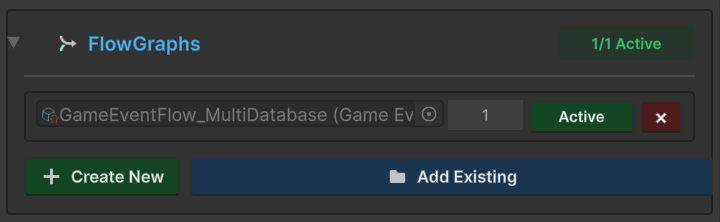
- Flow Container: A ScriptableObject that holds multiple "Flow Graphs".
- Workflow: You can have a "Global Flow" for persistent logic and "Level Specific Flows" that you load/unload per scene.
📊 Live Statistics (Telemetry)
The Inspector provides three dedicated panels to monitor the health and composition of your event system.
1. Overview Stats
Tracks the binding status of your events.
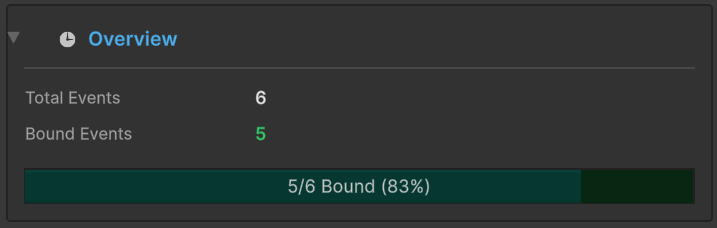
- Total Events: The sum of all events across all active databases.
- Bound Events: The number of events that are currently configured in the Inspector (Visual Binding).
- Runtime Binding: Events bound via code (
AddListener) are tracked separately in the Runtime Monitor.
2. Composition
Shows the complexity distribution of your event architecture.
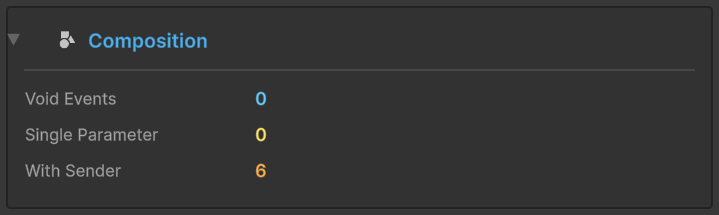
- Void Events: Simple signals (e.g.,
OnJump). - Single Parameter: Typed payloads (e.g.,
OnHealthChanged(float)). - With Sender: Source-aware events (e.g.,
OnDamage(GameObject sender, float amount)).
3. Event Types Registry
A live registry of every data type currently compiled and supported by your project.
Built-in Types (Out of the Box)
The system comes pre-loaded with native support for 32 standard types, categorized exactly as defined in the core engine:
📋 View Supported Built-in Types
| C# Types | Math | Components | Assets |
|---|---|---|---|
int | Vector2 | GameObject | Sprite |
float | Vector3 | Transform | Texture2D |
double | Vector4 | RectTransform | Material |
bool | Vector2Int | Rigidbody | AudioClip |
string | Vector3Int | Rigidbody2D | AnimationClip |
byte | Quaternion | Collider | |
long | Rect | Collider2D | |
char | Bounds | Camera | |
Color | Light | ||
ParticleSystem |
Custom & Sender Types
When you create an event with a Custom Class (e.g., PlayerStats) or a Sender Event (e.g., <GameObject, DamageInfo>), those types will automatically appear in this list after code generation.
🛠 Best Practices
✅ DO
- Split your databases: Keep a
Global_DBfor game-wide events andLevel_DBfor specific maps. - Keep the Manager: Ensure the
GameEventManagerobject exists in every scene (or useDontDestroyOnLoadvia the Persistent Manager). - Use "Add Existing": When working in a team, referencing existing database assets ensures everyone uses the same GUIDs.
❌ DO NOT
- Delete Assets Manually: I repeat, never delete sub-assets from the Project View. Always use the Editor Windows.
- Move to Plugins: Keep your Data folder (
TinyGiantsData) outside of thePluginsfolder.