02 Basic Types: Passing Data with Events
📍 Demo Info
-
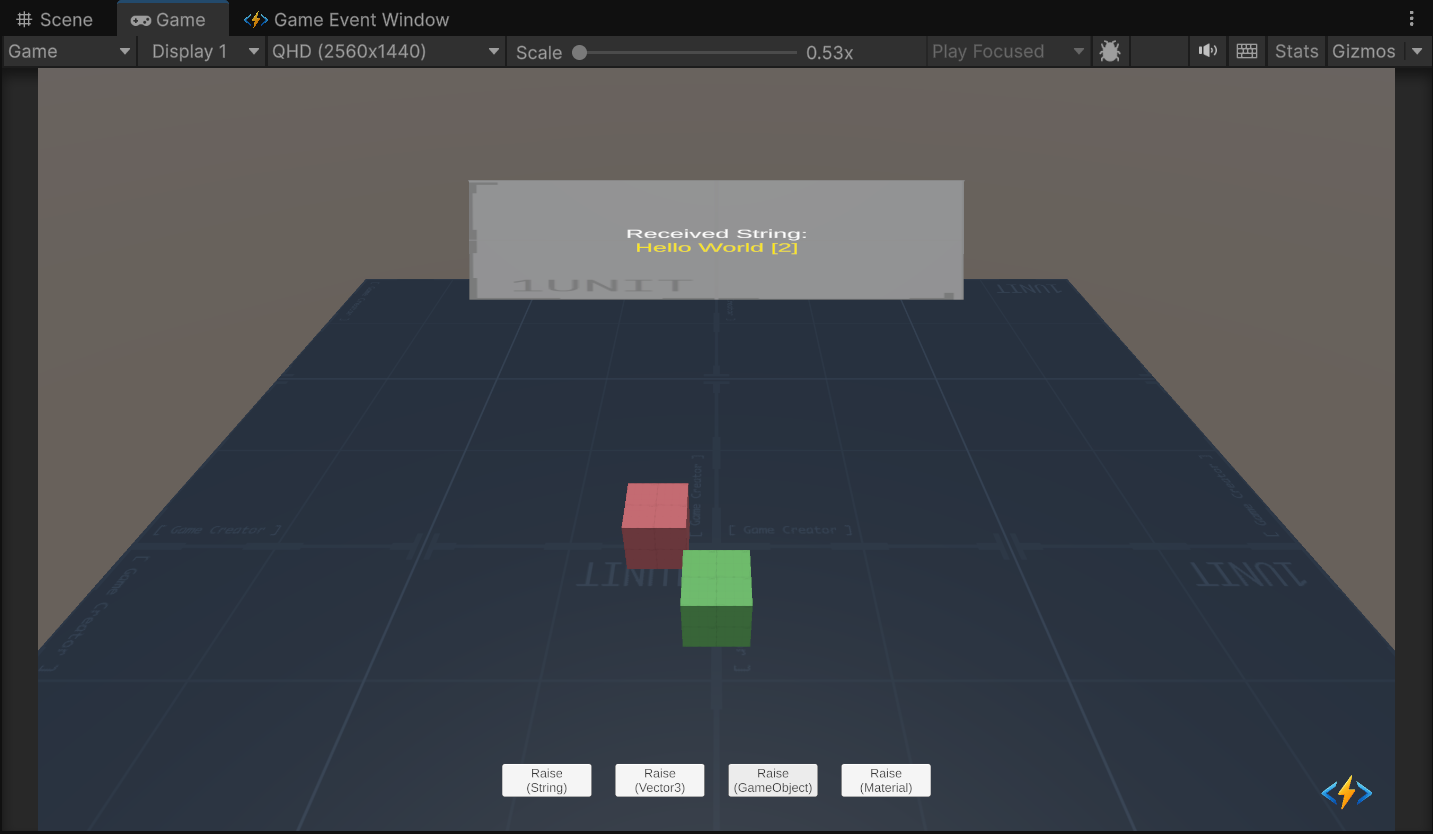
Scene Preview
-
Scene Path
Assets/TinyGiants/GameEventSystem/Demo/02_BasicTypesEvent/02_BasicTypesEvent.unityGoalTo demonstrate the Generic Event System, which allows passing standard C# and Unity types (String, Vector3, GameObject, Material) as arguments without writing custom event classes.
📝 Description
Beyond Void Events While void events are great for simple signals, most games need to pass data: "How much damage?", "Which item?", "Where to spawn?".
This demo showcases 4 different data types being passed dynamically:
- String: Sends text to update a UI label.
- Vector3: Sends coordinates to move a 3D object.
- GameObject: Sends a Prefab reference to be spawned.
- Material: Sends a Material asset to change an object's color.
The Magic: You do not need to create separate scripts like StringGameEvent or Vector3GameEvent. The system generates concrete classes for you automatically.
🛠️ Scene Setup
The scene contains interactable elements for each data type:
- HoloDisplay (Text): Receives the
Stringevent. - Floating Cube: Receives the
Vector3event (Movement) andMaterialevent (Color). - Spawn Point: Receives the
GameObjectevent to spawn prefabs. - UI Buttons: Four buttons at the bottom to trigger each specific event type.
🎮 How to Test
- Enter Play Mode.
- Click "Raise (String)":
- Observation: The holographic text updates with "Hello World [count]".
- Click "Raise (Vector3)":
- Observation: The cube teleports to a random position.
- Click "Raise (GameObject)":
- Observation: A random primitive (Cube/Sphere) is instantiated at the center.
- Click "Raise (Material)":
- Observation: The cube changes color (Red/Green/Blue/Yellow).
🔑 Key Configuration
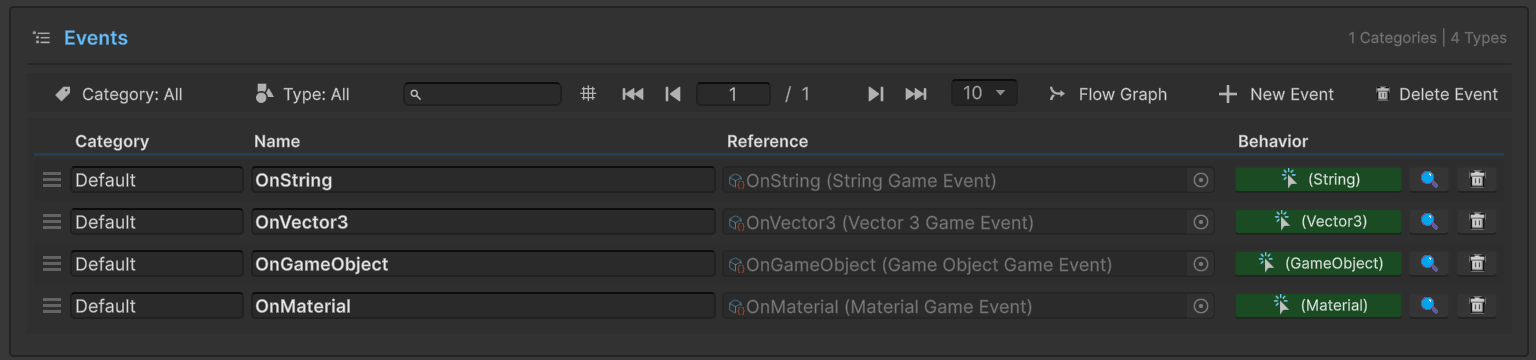
1. Event Definition (Editor)
In the Game Event Editor, we have pre-created 4 events, each corresponding to a specific data type (String, Vector3, GameObject, Material).
2. Receiver Action Binding (Behavior)
Each event is configured to call a specific method on the BasicTypesEventReceiver script.
OnString→ binds toOnMessageReceived(string)OnVector3→ binds toOnMoveReceived(Vector3)- Note: The system automatically enforces type safety, ensuring you can only bind methods with matching parameters.
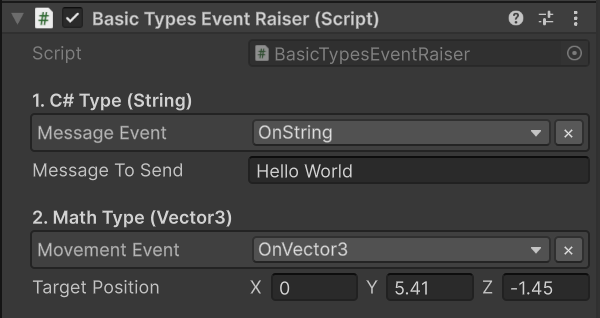
3. Raiser Event Assignment (Inspector)
Select the BasicTypesEventRaiser object.
The script exposes 4 distinct slots. Notice how the Dropdown filters the list—you can only assign a GameEvent<string> asset to the "Message Event" slot.
💻 Code Walkthrough
1. The Sender (BasicTypesEventRaiser.cs)
Notice how GameEvent<T> is used for different types.
public class BasicTypesEventRaiser : MonoBehaviour
{
    // 1. String Event
    [GameEventDropdown] public GameEvent<string> messageEvent;
    public string messageToSend = "Hello World";

    // 2. Vector3 Event
    [GameEventDropdown] public GameEvent<Vector3> movementEvent;

    public void RaiseString()
    {
        // Raises event with a dynamic string argument
        messageEvent.Raise($"{messageToSend} [{_count++}]");
    }

    public void RaiseVector3()
    {
        // Calculates a random position and sends it
        Vector3 randomPos = new Vector3(Random.Range(-2f, 2f), Random.Range(0f, 3f), 0);
        movementEvent.Raise(randomPos);
    }
}
2. The Receiver (BasicTypesEventReceiver.cs)
The receiver methods must have matching parameters.
public class BasicTypesEventReceiver : MonoBehaviour
{
    [SerializeField] private TextMeshPro logText;
    [SerializeField] private Transform movingCube;

    // Signature Match: void (string)
    public void OnMessageReceived(string msg)
    {
        logText.text = $"Received: {msg}";
    }

    // Signature Match: void (Vector3)
    public void OnMoveReceived(Vector3 pos)
    {
        movingCube.localPosition = pos;
    }
}