01 Void Event: The Decoupled Architecture
📍 Demo Info
-
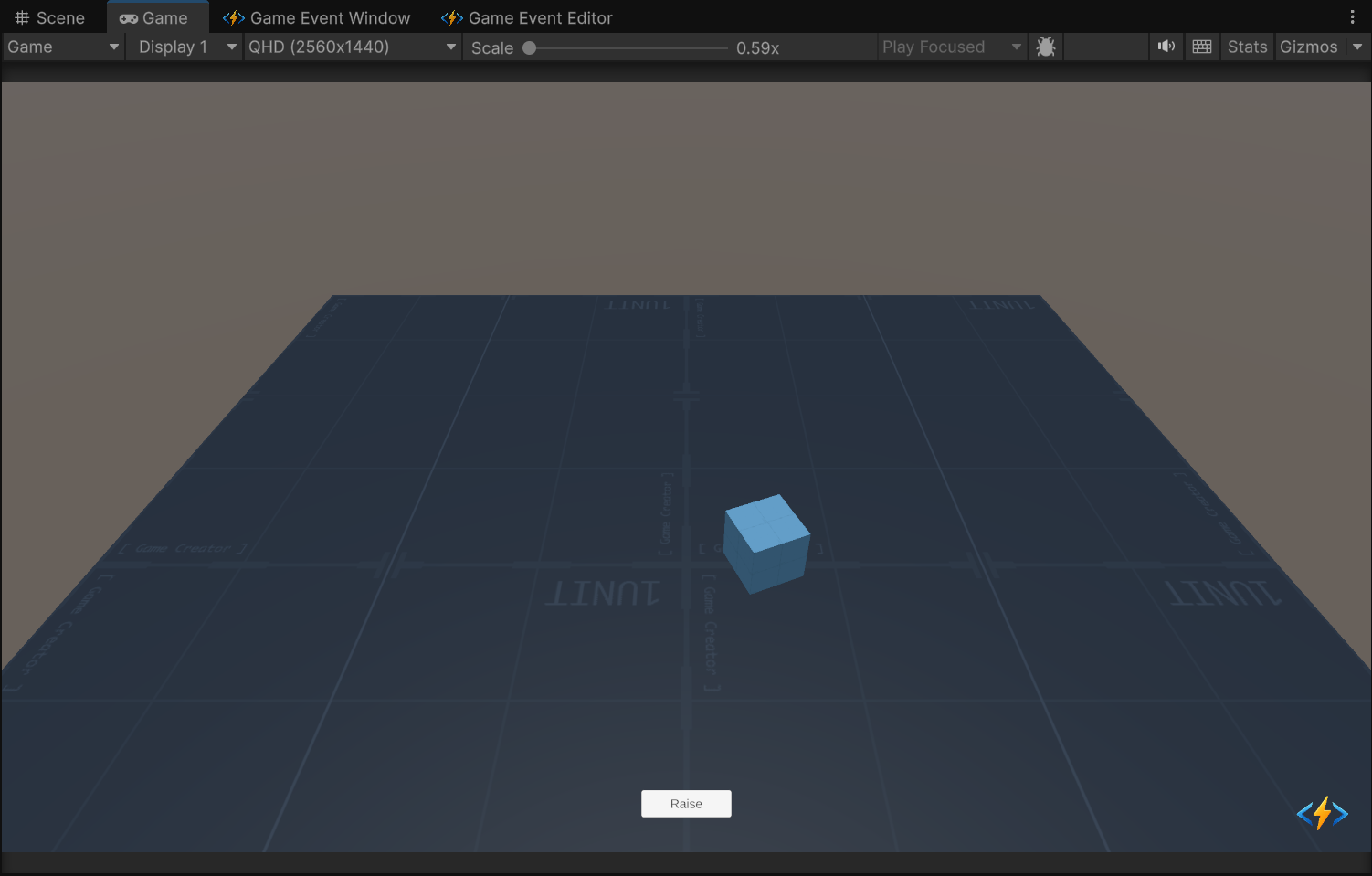
Scene Preview
-
Scene Path
Assets/TinyGiants/GameEventSystem/Demo/01_VoidEvent/01_VoidEvent.unityGoalTo demonstrate the Observer Pattern where the Sender (UI Button) and Receiver (Physics Cube) communicate without referencing each other in code.
📝 Description
What is a Void Event? A "Void Event" is the simplest form of signal. It carries no data (no parameters), just the message that "Something Happened".
In this demo, we use a parameterless event named onVoidEvent.
- The Sender: A UI Button script that fires the signal.
- The Receiver: A Cube that jumps and spins when the signal is heard.
The Power of Decoupling:
If you check the scripts, you will see that VoidEventRaiser.cs does not know about VoidEventReceiver.cs. You could delete the Cube entirely, and the Button would still work without errors.
🛠️ Scene Setup
The scene consists of three main parts:
- Canvas / Raise Button: The user input source.
- VoidEventRaiser (GameObject): Holds the script that sends the event.
- Demo Objects / Cube: The physical object that reacts to the event.
🎮 How to Test
- Enter Play Mode.
- Locate the "Raise" button at the bottom center of the screen.
- Click the Button.
- Observe the Blue Cube:
- It will jump upwards.
- It will spin randomly.
- A sound effect will play (configured on the Raiser).
- Check the Console: You will see logs from both the Raiser and the Receiver confirming the flow.
🔑 Key Configuration
How are the Raiser and Receiver connected if they don't reference each other? Through the Event Asset.
1. Event Definition (Editor)
The event onVoidEvent has been pre-created in the database.
In the Game Event Editor, you can see it listed with the type (void).

2. Receiver Action Binding (Behavior)
- Select the event in the list and click the Behavior button.
- Observe the Event Action list: The
VoidEventReceiver.OnEventReceivedmethod is visually bound here. - This is how the system knows which method to call when the event fires.

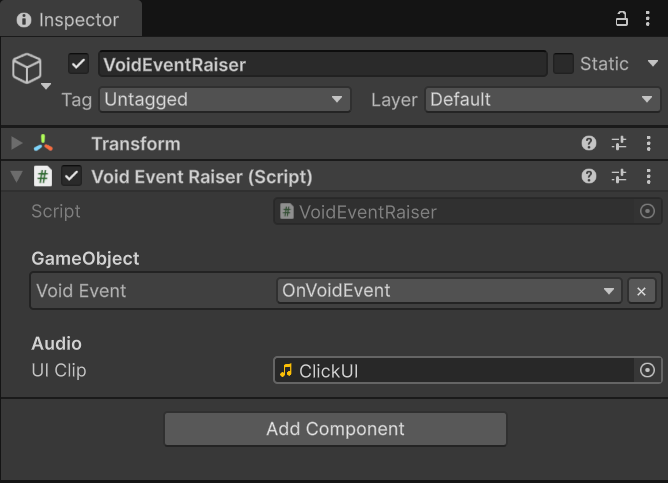
3. Raiser Event Assignment (Inspector)
Select the VoidEventRaiser object in the Hierarchy.
In the Inspector, the Void Event field is assigned using the [GameEventDropdown]. This links the script to the specific Asset in the database.
💻 Code Walkthrough
1. The Sender (VoidEventRaiser.cs)
This script's only job is to broadcast the signal.
public class VoidEventRaiser : MonoBehaviour
{
    // [GameEventDropdown] creates a searchable list in the Inspector
    [Header("GameObject")]
    [GameEventDropdown] public GameEvent voidEvent;

    [Header("Audio")]
    [SerializeField] private AudioClip UIClip;
    private AudioSource _audioSource;

    // Linked to the UI Button's OnClick()
    public void RaiseBasicEvent()
    {
        // 1. Local Feedback (Audio)
        if (UIClip) _audioSource.PlayOneShot(UIClip);

        if (voidEvent == null) return;

        // 2. Broadcast the Signal
        // The sender doesn't know WHO is listening, or WHAT they will do.
        voidEvent.Raise();

        Debug.Log("[VoidEvent] Raise() called on GameEvent.");
    }
}
2. The Receiver (VoidEventReceiver.cs)
This script contains the logic to jump the cube. Notice it has no reference to the Event asset itself. It is a pure logic container.
public class VoidEventReceiver : MonoBehaviour
{
    [SerializeField] private Rigidbody targetRigidbody;

    // Logic parameters
    private float jumpForce = 5.0f;
    private float spinStrength = 5.0f;

    /// <summary>
    /// This method is bound via the Game Event Editor window.
    /// It is NOT called by code references.
    /// </summary>
    public void OnEventReceived()
    {
        Debug.Log("[VoidEvent] OnEventReceived() called on GameEvent.");

        if (targetRigidbody != null)
        {
            // Reset vertical velocity to ensure consistent jump height
            // (Uses Unity 6 compatible syntax if available)
            Vector3 currentVel;
#if UNITY_6000_0_OR_NEWER
            currentVel = targetRigidbody.linearVelocity;
#else
            currentVel = targetRigidbody.velocity;
#endif
            currentVel.y = 0;

            // Apply Physics
#if UNITY_6000_0_OR_NEWER
            targetRigidbody.linearVelocity = currentVel;
#else
            targetRigidbody.velocity = currentVel;
#endif

            // Add Upward Force + Random Spin
            Vector3 finalForce = (Vector3.up * jumpForce) + RandomHorizontalForce();
            targetRigidbody.AddForce(finalForce, ForceMode.Impulse);
            targetRigidbody.AddTorque(Random.insideUnitSphere * spinStrength, ForceMode.Impulse);
        }
    }
}
The demo code includes preprocessor directives (#if UNITY_6000...) to automatically support the new linearVelocity API in Unity 6 while maintaining compatibility with older versions.