08 Repeating: Controlled Loops
📍 Demo Info
-
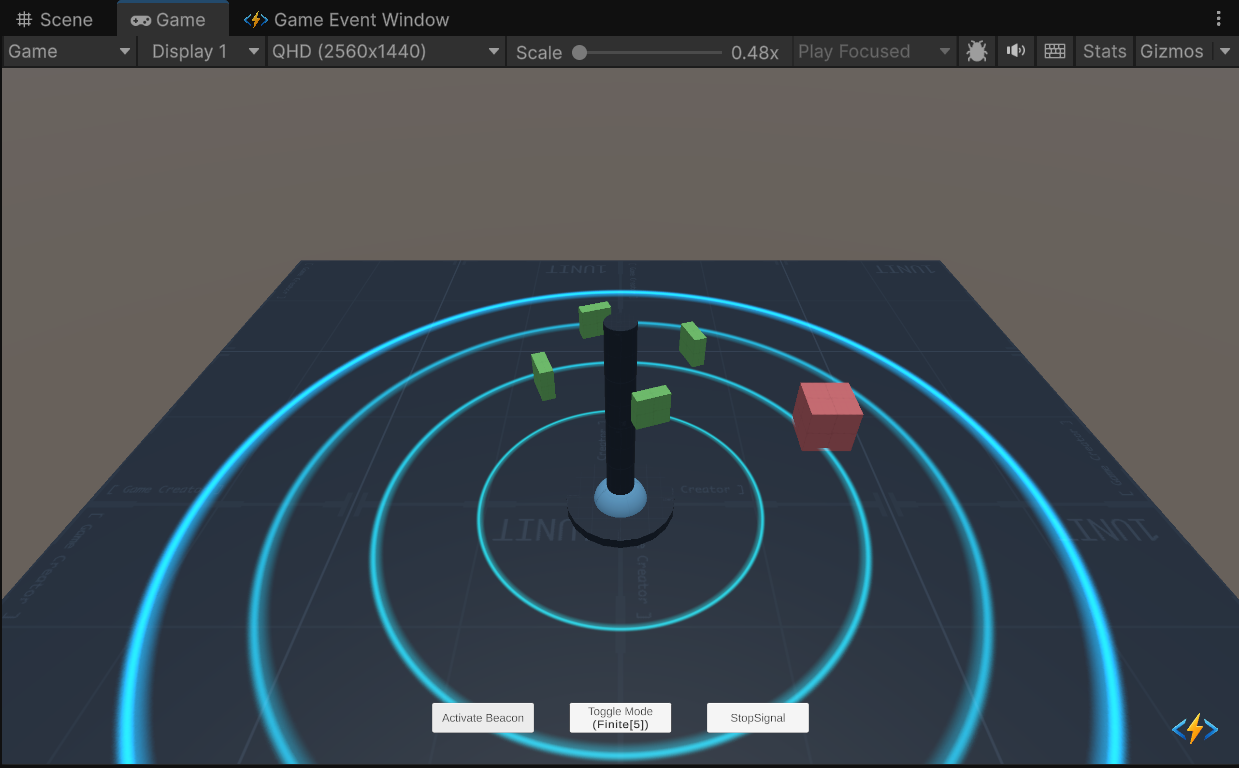
Scene Preview
-
Scene Path
Assets/TinyGiants/GameEventSystem/Demo/08_RepeatingEvent/08_RepeatingEvent.unityGoalTo demonstrate the Auto-Looping System. You will learn how to configure an event to fire repeatedly at a fixed interval without writing any timer loops in your code.
📝 Description
Automation without Coroutines
Normally, creating a repeating pulse (like a radar scan or poison damage) requires writing a while loop or InvokeRepeating in C#.
The Game Event System moves this logic into the Event Asset itself.
- Finite Loop: Fires X times, then stops automatically.
- Infinite Loop: Fires forever until manually cancelled.
The Scenario: The Beacon We have a sci-fi beacon that emits shockwaves.
- Finite Mode (5x): Sends 5 pulses to scan the area.
- Infinite Mode: Sends continuous pulses until you hit "Stop".
🛠️ Scene Setup
- The Beacon: A central tower with a rotating core. Its rotation speed changes based on the active mode.
- Scan Targets: Floating green cubes. When hit by the invisible "scan wave", they light up and display "DETECTED".
- UI Controls:
- Activate Beacon: Starts the current loop event.
- Toggle Mode: Switches between Finite (5x) and Infinite (-1).
- Stop Signal: Calls
Cancel()to interrupt the infinite loop.
🎮 How to Test
- Enter Play Mode.
- Mode 1: Finite Loop
- Ensure the text says "Finite [5]".
- Click "Activate Beacon".
- Observe: The beacon pulses exactly 5 times (one per second), scanning nearby targets, then stops automatically.
- Mode 2: Infinite Loop
- Click "Toggle Mode". Text changes to "Infinite".
- Click "Activate Beacon".
- Observe: The beacon pulses faster (0.5s interval) and does not stop.
- Interrupt
- While infinite mode is running, click "Stop Signal".
- Result: The loop terminates immediately.
🔑 Key Configuration
1. Event Definition (Editor)
We use two separate Void events to demonstrate different configurations.

2. Loop Configuration (Behavior)
This is where we define the loop rules. Open the Behavior Window for each event:
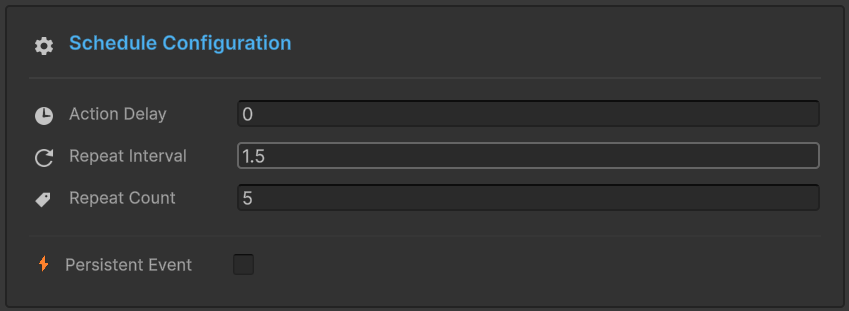
Finite Pulse Event:
- Repeat Interval:
1.0(One pulse every second). - Repeat Count:
5(Stop after 5 shots).
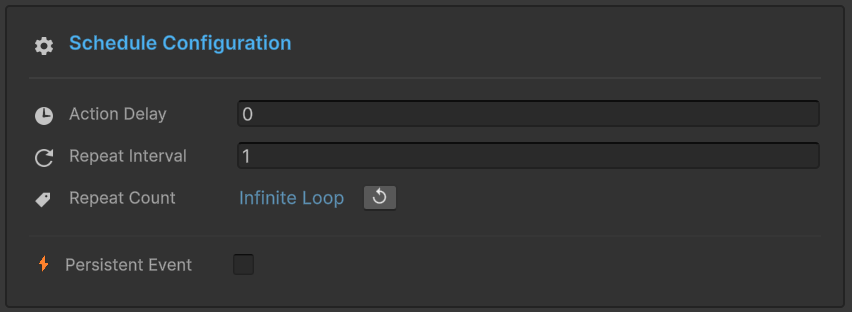
Infinite Pulse Event:
- Repeat Interval:
0.5(Two pulses per second). - Repeat Count:
-1(Infinite / Loop Forever).
3. Raiser Assignment (Inspector)
The Raiser script holds references to both events and switches between them based on the mode.

💻 Code Walkthrough
1. The Sender (RepeatingEventRaiser.cs)
Notice how the code for starting a loop is identical to firing a single event. The complexity is hidden inside Raise().
public class RepeatingEventRaiser : MonoBehaviour
{
    [GameEventDropdown] public GameEvent finitePulseEvent;
    [GameEventDropdown] public GameEvent infinitePulseEvent;

    public void ActivateBeacon()
    {
        // Select the event based on mode
        GameEvent currentEvent = _isInfiniteMode ? infinitePulseEvent : finitePulseEvent;

        // 1. Start the Loop
        // Just call Raise()! The system checks the Inspector settings
        // and automatically starts the internal timer loop.
        currentEvent.Raise();
    }

    public void StopSignal()
    {
        // 2. Stop the Loop
        // If an infinite loop is running, we must manually cancel it.
        // This stops the internal timer immediately.
        if (_currentEvent != null)
        {
            _currentEvent.Cancel();
        }
    }
}
2. The Receiver (RepeatingEventReceiver.cs)
The receiver logic is stateless. It just reacts to "Pulse Received". It doesn't care if it's the 1st pulse or the 100th.
public class RepeatingEventReceiver : MonoBehaviour
{
    public void OnPulseReceived()
    {
        // 1. Visual Feedback
        SpawnShockwaveVFX();
        PlaySonarSound();

        // 2. Gameplay Logic (Scanning)
        // We launch a coroutine to check for targets within the expanding ring.
        StartCoroutine(ScanRoutine(transform.position));
    }

    private IEnumerator ScanRoutine(Vector3 center)
    {
        // Expands a sphere collider over time to detect "Targets"
        // ... (See full source for physics logic)
    }
}
You can also start loops purely via code (ignoring Inspector settings) using: myEvent.RaiseRepeating(interval: 0.5f, repeatCount: 10);