12 Multi-Database: Modular Architecture
📍 Demo Info
-
Scene Preview
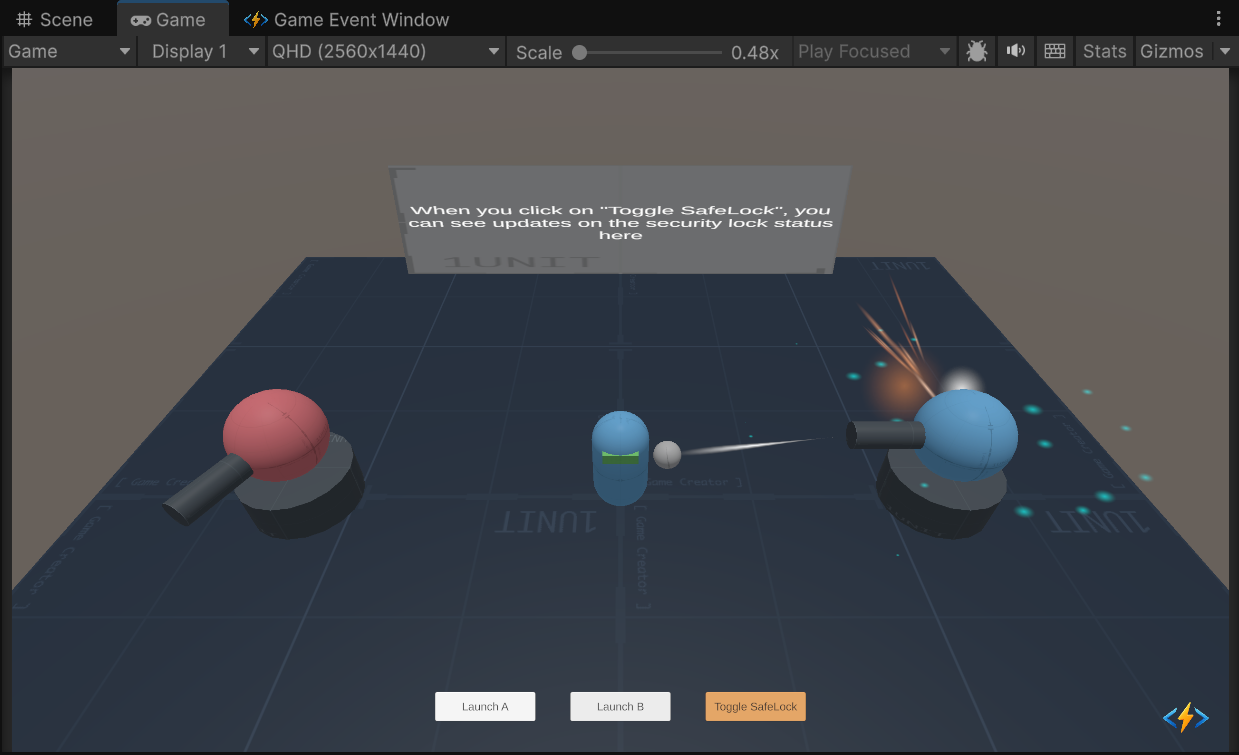
-
Scene Path
Assets/TinyGiants/GameEventSystem/Demo/12_MultiDatabase/12_MultiDatabase.unityGoalTo demonstrate how to split your events into multiple Modular Databases (e.g., Core, Combat, UI) for better organization, and prove that the Flow Graph can seamlessly connect events across different databases.
📝 Description
The Monolith Problem
In a large RPG, you might have 500+ events. Storing them all in one GlobalDatabase.asset makes version control (git) painful and the Inspector slow.
The Modular Solution This system allows you to create as many databases as you want. In this demo, we took the "Launch Protocol" from Demo 11 and shattered it across 3 separate asset files:
- Database_Core: Contains Logic Flow events (
StartSequence,SystemCheck). - Database_Combat: Contains Action events (
Charge,Fire). - Database_System: Contains Utility events (
CoolDown,Archive).
The Result: The Chain Graph connects them all without caring where they live.
🛠️ Scene Setup
The scene is visually identical to Demo 11 (Two Turrets, Safe Lock). The key difference is invisible to the player but vital for the developer: Data Organization.
- Game Event Manager: Now loads 3 Databases instead of 1.
- Flow Graph: Contains nodes that reference events from all 3 databases mixed together.
🎮 How to Test
- Enter Play Mode.
- Click "Launch A":
- Observation: The sequence runs perfectly (Check -> Charge -> Fire -> Cooldown -> Archive).
- Behind the Scenes: The execution pointer jumped from
Core.asset->Combat.asset->System.assetseamlessly.
- Verify Loading:
- Select
Game Event Managerin Hierarchy. - Uncheck the "Active" toggle for
GameEventDatabase_Combat. - Click "Launch A": The sequence will likely hang or error because the intermediate events are now "unloaded".
- This proves the modular loading system works.
- Select
🔑 Key Configuration
1. Manager Configuration (Runtime)
Select the GameEventManager in the scene.
Look at the Databases list. You will see 3 distinct assets loaded.
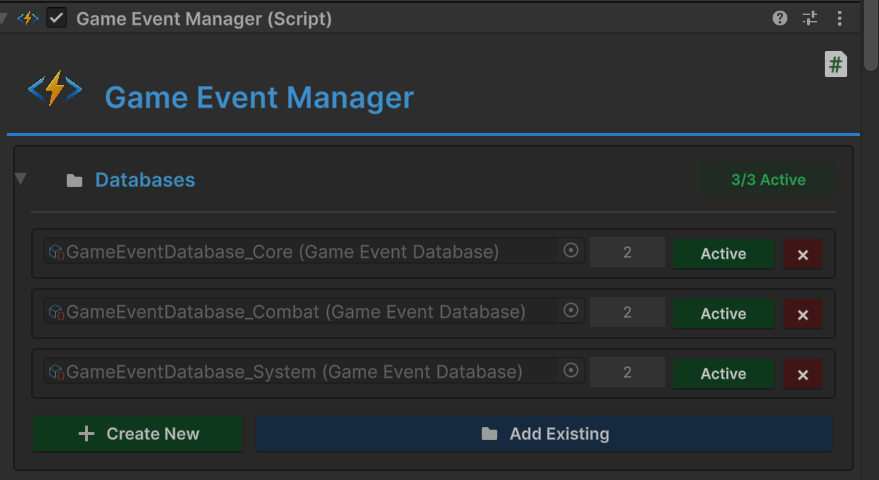
At runtime, the Manager merges all active databases into a single high-performance lookup table. There is zero performance cost to splitting your databases.
2. Editor Configuration (Design Time)
Open the Game Event Editor. Use the Database Dropdown in the toolbar to switch contexts.
- Select
Database_Core: You only see 2 events. - Select
Database_Combat: You see 2 different events. - Select
Database_System: You can also see 2 different events.
3. The "Distributed" Flow Graph
Open the Flow Graph Window. Double-click different nodes and check their Event GUIDs. You will see they point to different asset files, yet they are connected by the same green lines.
- Node 1 (
Start) → Core DB - Node 3 (
Fire) → Combat DB
💻 Code Walkthrough
The Raiser (MultidatabaseRaiser.cs)
The code is completely agnostic to the database structure.
It references sequenceStartEvent. It doesn't care if that event lives in Core_DB or Global_DB.
public class MultidatabaseRaiser : MonoBehaviour
{
    // This event happens to be in 'Database_Core',
    // but we don't need to know that in code.
    [GameEventDropdown]
    public GameEvent<GameObject, DamageInfo> sequenceStartEvent;

    public void RequestLaunchA()
    {
        // Works exactly the same as a single-database setup
        sequenceStartEvent.Raise(turretA, info);
    }
}
The Receiver (MultidatabaseReceiver.cs)
Similarly, the receiver binds to the events by type/name.
public class MultidatabaseReceiver : MonoBehaviour
{
    // Bound to '1_SystemCheck' (from Core DB)
    public void OnSystemCheck(...) { ... }

    // Bound to '3_Fire' (from Combat DB)
    public void OnFireWeapon(...) { ... }
}
This feature allows Team Collaboration.
- Programmers can work on Core_DB.
- Designers can work on Level1_DB.
- Audio Engineers can work on Audio_DB. No more merge conflicts on a single giant asset file!